Everything you, as a parent, can configure: from the parents’ area and Learning Mode to importing vocabulary and data protection settings.
1Start
Account and consent
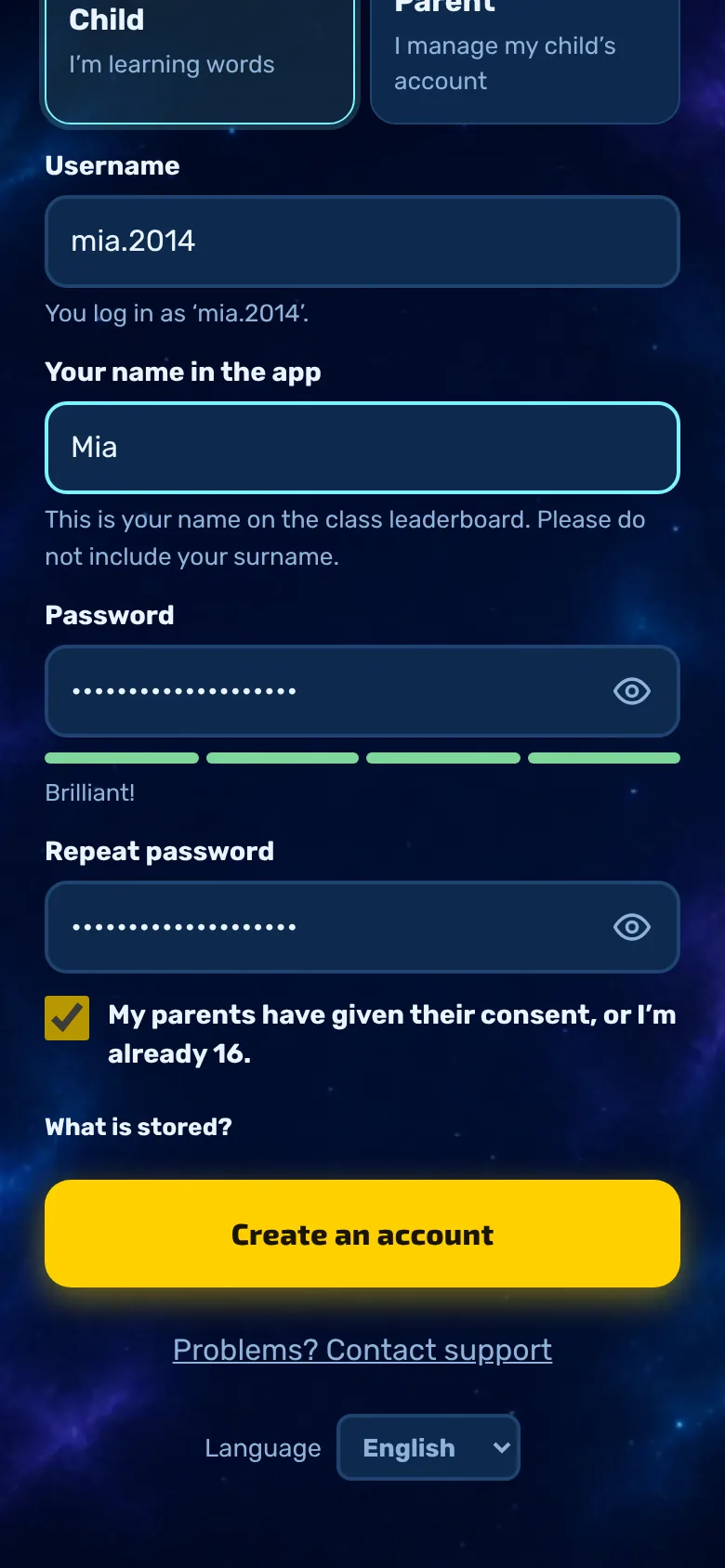
Your child creates their own account, ideally together with you. An email address is not required.
A username and password are sufficient. The password must be at least 10 characters long.
The tick box “My parents agree, or I am already 16” is mandatory. This documents consent.
Providing a parent’s email address is optional and is intended solely for ‘Forgotten password’ requests and replies from support (see Manage account).
Tip: The step-by-step guide for children is available here. It’s best to go through it together.
2Important
Keep the recovery code safe
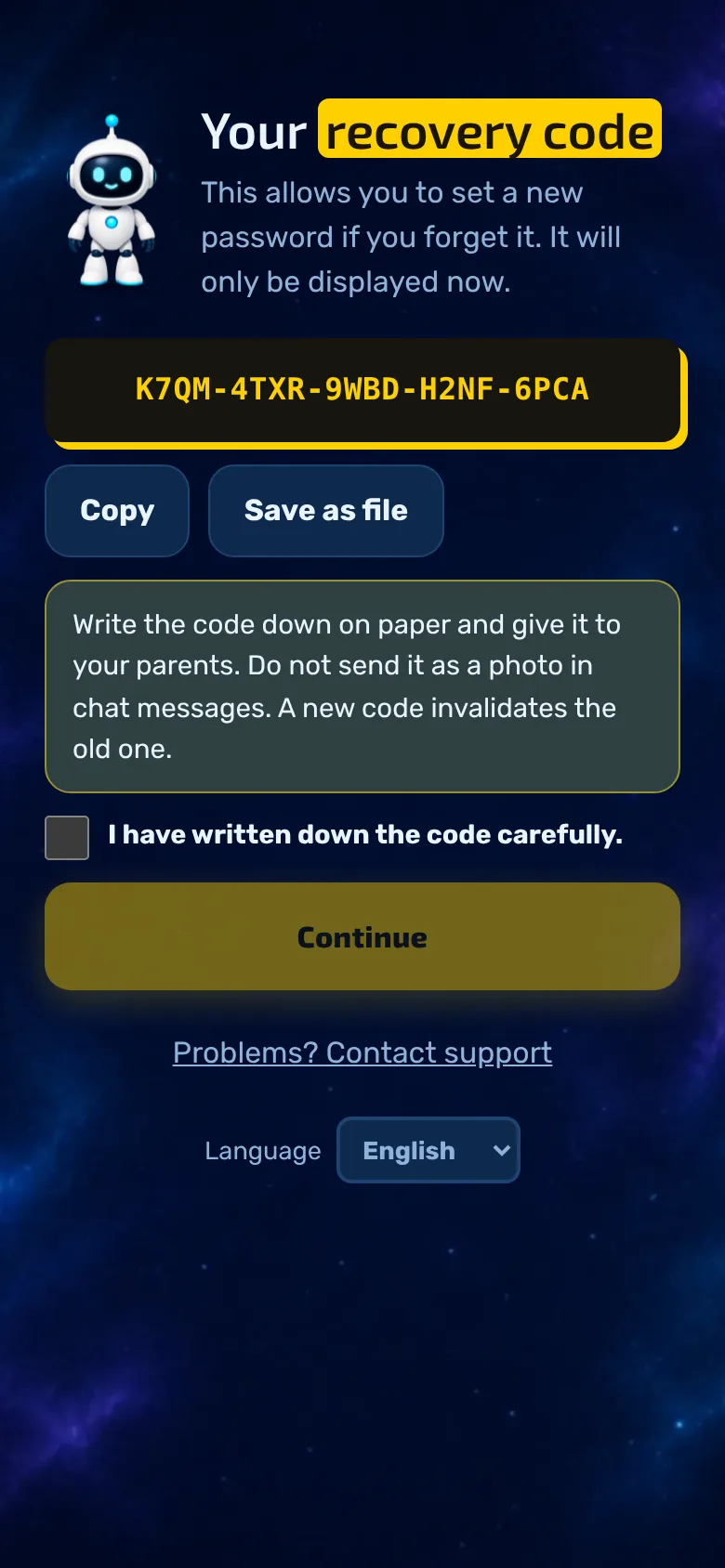
After registration, a one-off recovery code consisting of five blocks is displayed. This is the reliable way to reset a forgotten password.
Write down the code and keep it safe; do not save it as a photo in a chat.
It is only displayed once. Lost it? You can generate a new one in the parents’ area under ‘Account’; the old one will then become invalid.
3Settings
Open the parents’ area
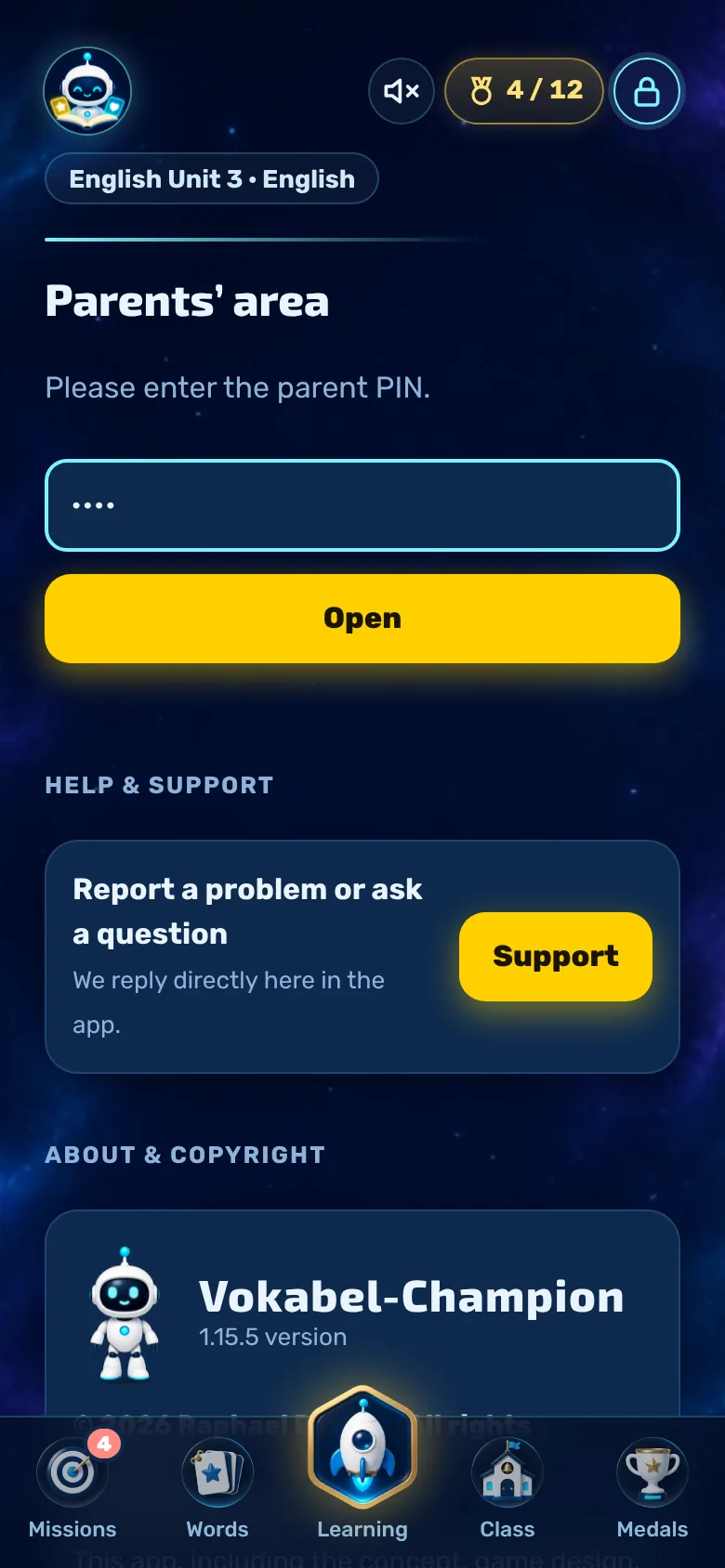
The lock icon in the top right-hand corner of the app takes you to the parents’ area. If desired, a PIN can be set to protect it from curious little fingers.
Tap on the padlock. If you have set a PIN (up to 8 digits), you will be prompted to enter it.
You set the PIN in the parents’ area under ‘Profile’. Leaving the field blank means: no PIN.
Below the PIN prompt is ‘Help & Support’, so that your child can get help even without a PIN.
4Settings
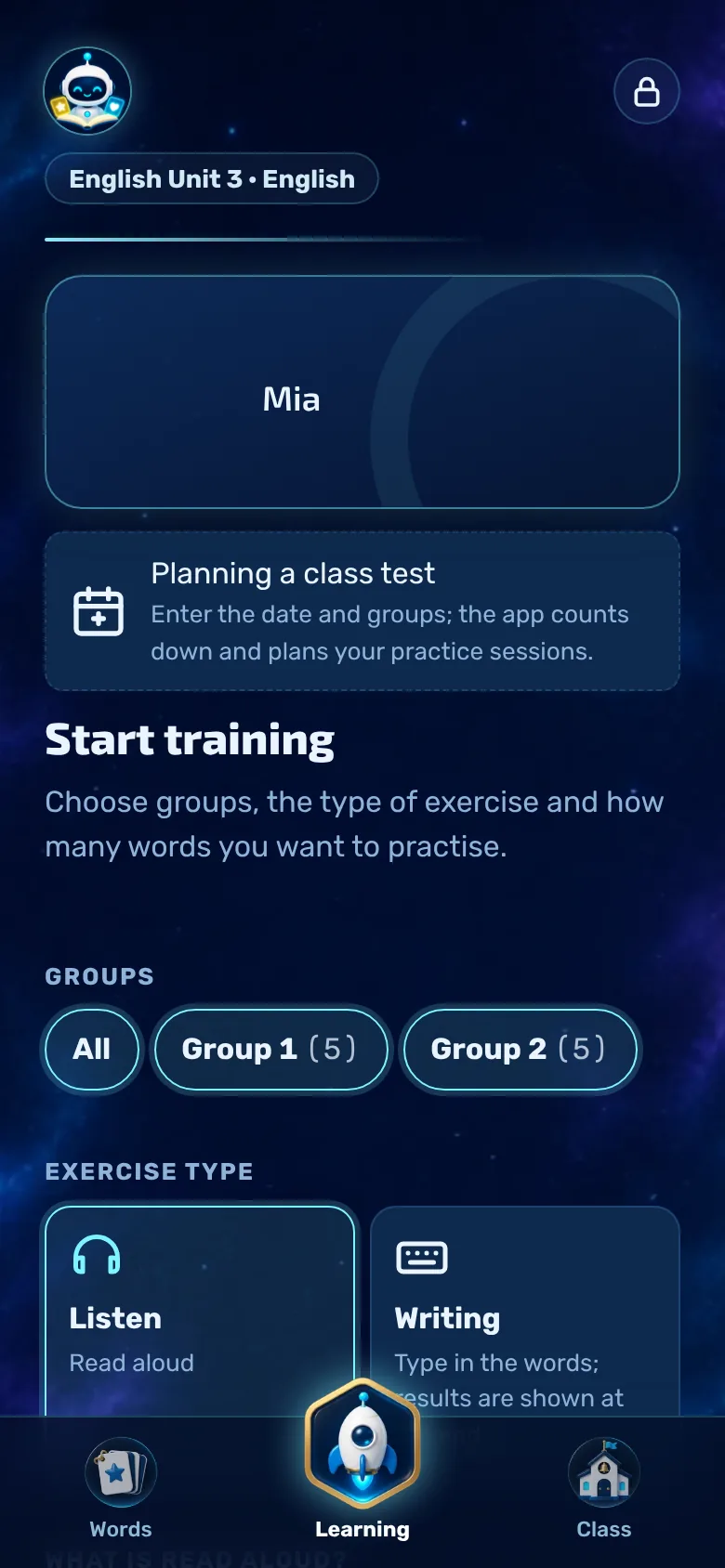
Stop training
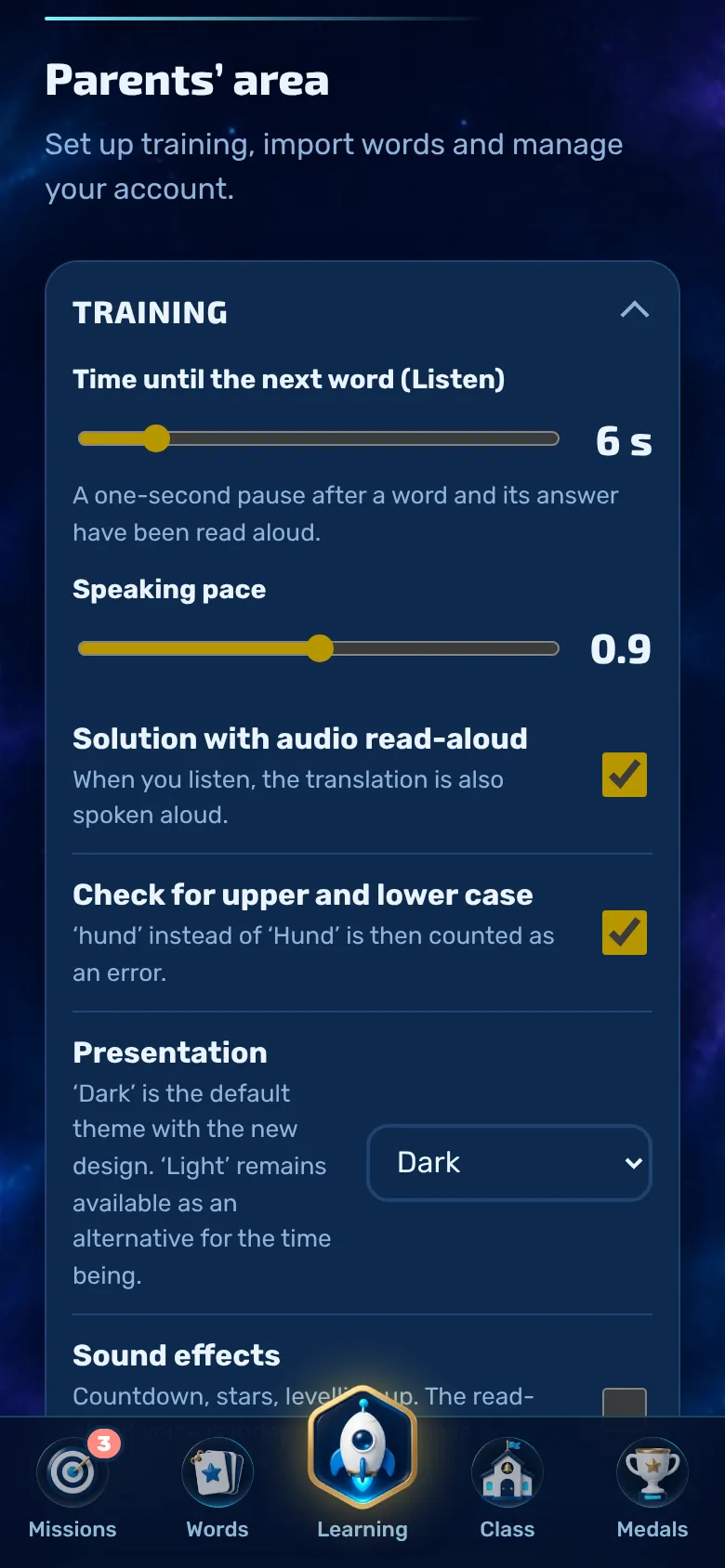
In the parents’ area at the top, you can set how the practice sessions are organised.
Die Bereiche im Eltern-Bereich sind zugeklappt. Tippen Sie auf „Training“, um ihn zu öffnen.
Time until the next word when listening: 2 to 30 seconds.
Speech rate: 0.5 to 1.3. Lower values result in slower speech.
Solution with read-aloud function: When you listen, the translation is also spoken aloud.
Check for upper and lower case: ‘hund’ instead of ‘Hund’ is then counted as an error. Turning this off makes it easier.
Sound effects: countdown, stars and level-up. The read-aloud voice is independent of these.
Darstellung: Dunkel ist der Standard, unabhängig von der Einstellung des Geräts. „Hell“ zeigt den früheren Stil und wird nicht mehr weiterentwickelt.
By selecting ‘Save settings’, you apply the profile below.
5Less of a game
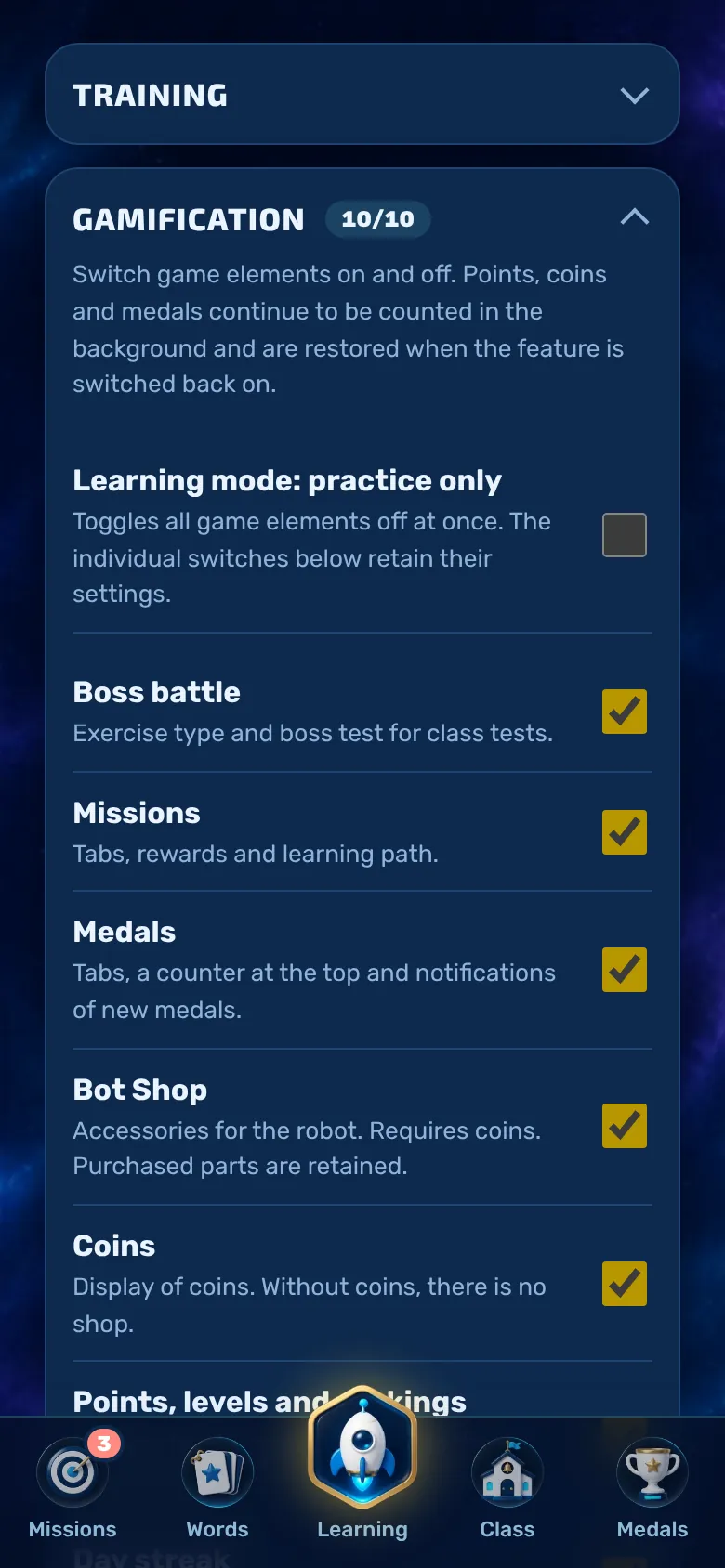
Learning mode: practice only
Not every child likes points, medals and bosses. The learning mode allows you to hide all game elements using a toggle switch. It is switched off by default.
Der Schalter „Lern-Modus: nur Üben“ steht im Eltern-Bereich unter „Gamification“ (antippen zum Aufklappen).
Then the boss battles, missions, medals, shop, coins, levels, series, robot phrases and the game sounds – including button clicks – all disappear. Only the text-to-speech function remains.
The individual toggles below are disabled in learning mode but retain their settings. If you switch them off, everything returns to how it was before.
Points, coins, medals and streaks continue to accumulate in the background and are restored when the app is opened again.
The setting is located in the game score and applies to all devices linked to the account.
6Fine-tune
Disable individual game elements
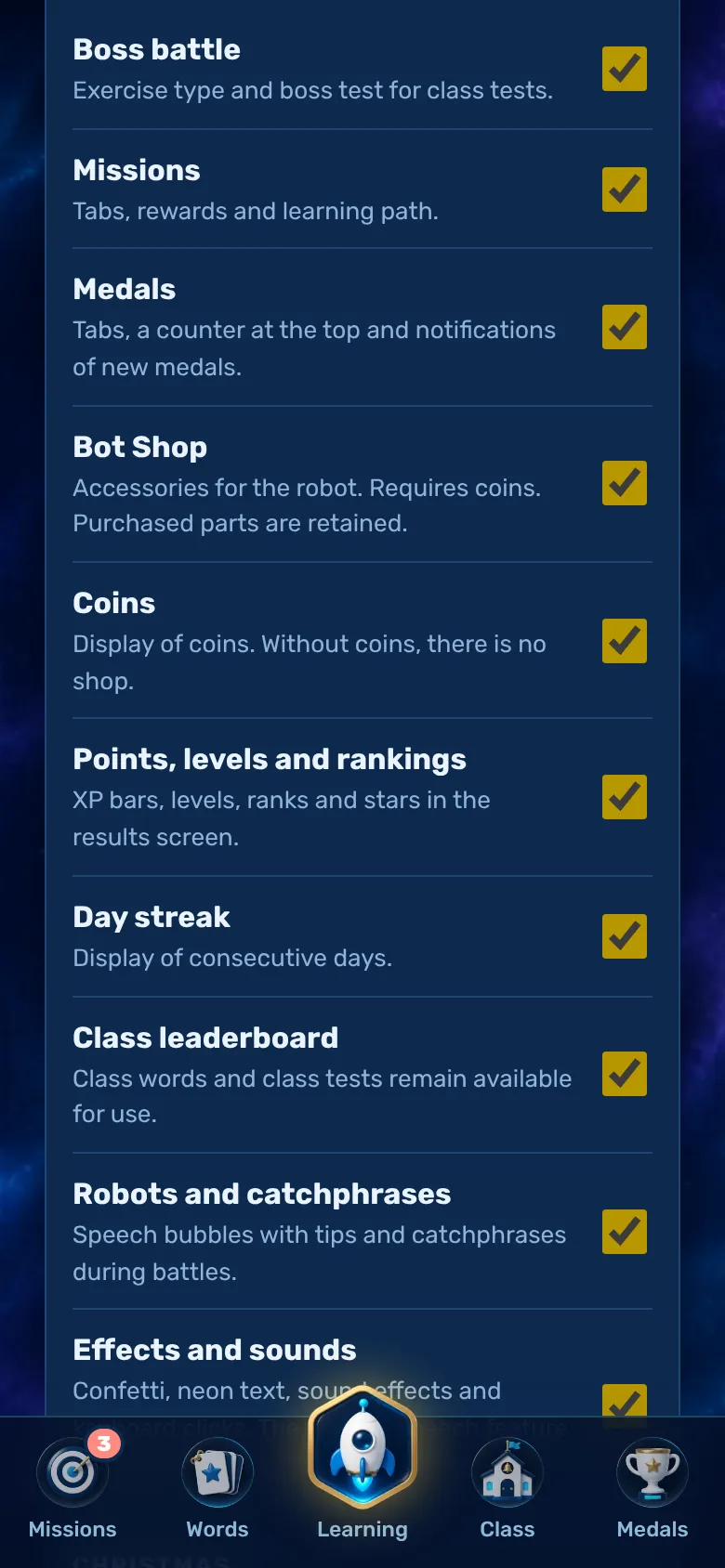
If you only want to disable certain features, you can switch off ten functions individually. By default, all are enabled.
Die Schalter stehen im Eltern-Bereich unter „Gamification“.
Boss battles, missions (with learning path), medals, bot shop, coins, points/levels/rank (with stars), daily streak, class leaderboard, robots and catchphrases, effects and sounds.
The shop requires coins: without a coin counter, there is no shop.
Hidden missions cannot be claimed. Items purchased from the shop remain attached to the robot.
The ‘Class’ tab remains permanently; only the leaderboard is removed. Class vocabulary and class tests remain available.
7Jedes Jahr
Weihnachten und Adventskalender
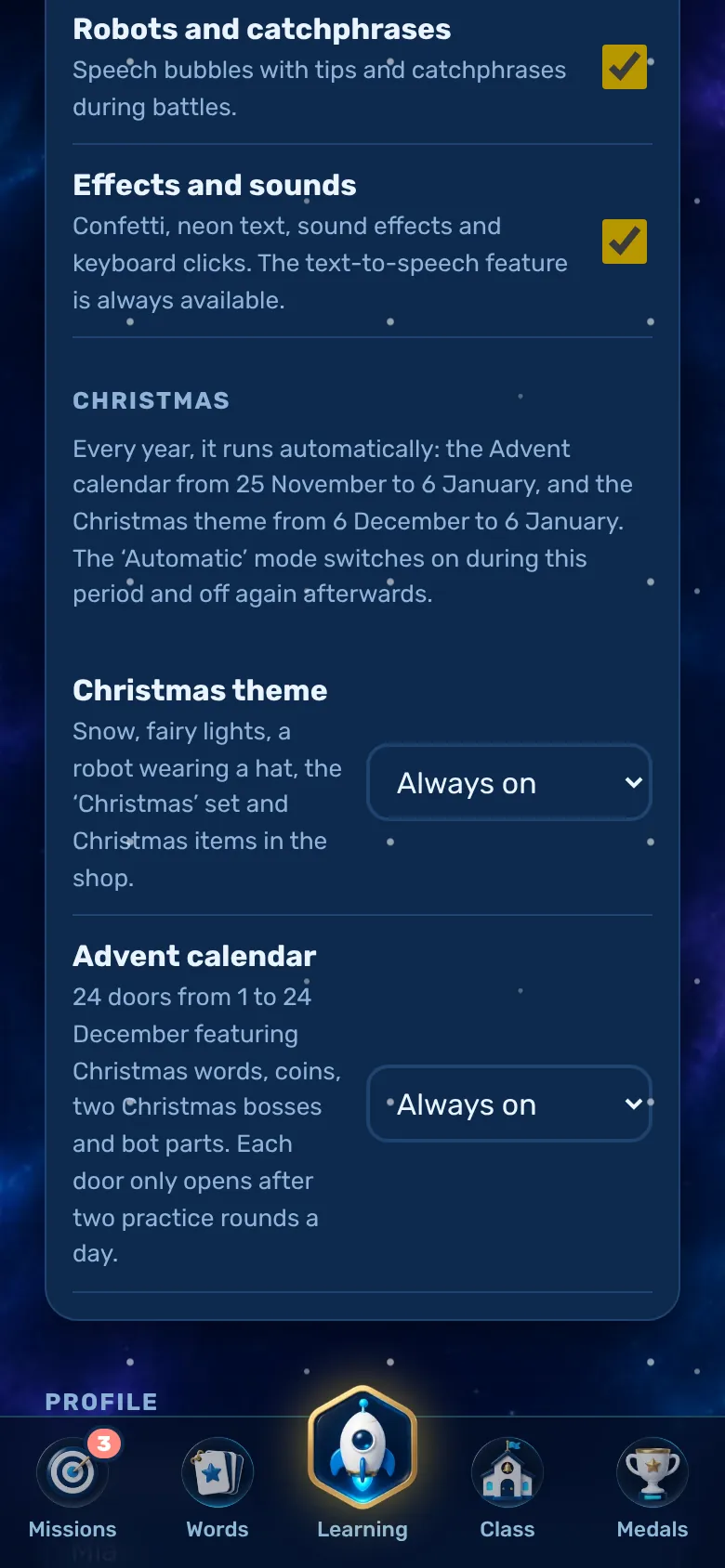
In der Weihnachtszeit gibt es einen Adventskalender und ein Weihnachts-Thema. Beides schaltet sich jedes Jahr von selbst ein und wieder aus.
Adventskalender: vom 25. November bis 6. Januar auf der Startseite, ab 1. Dezember mit 24 Türchen. Das Türchen des Tages öffnet sich nach zwei Übungsrunden. Darin stecken neue Weihnachts-Wörter, Münzen, zwei Weihnachts-Bosse und Bot-Teile.
Weihnachts-Thema: vom 6. Dezember bis 6. Januar mit Schnee, Lichterkette, winterlicher Missionskarte und Boss-Arena, einem Shop-Reiter „Weihnachten“ und dem Vokabel-Set „Weihnachten“ in der aktuellen Lernsprache.
Einstellen: Eltern-Bereich, „Gamification“, Block „Weihnachten“. Für Thema und Kalender jeweils „Automatisch“ (Standard), „Immer an“ oder „Aus“.
Im Lern-Modus (nur Üben) erscheinen Kalender und Weihnachtskarte nicht.
8Settings
Profile, PIN and colour
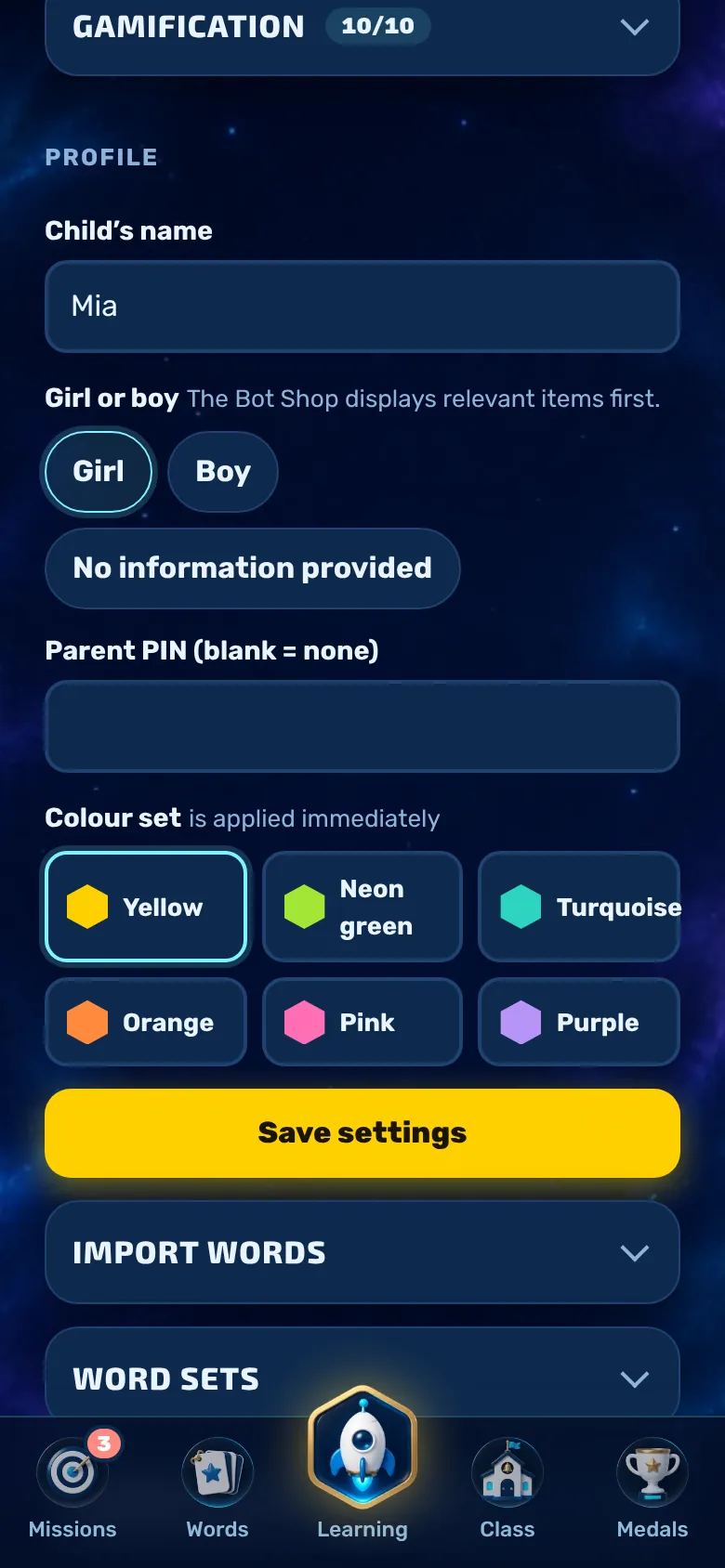
Under ‘Profile’, you can change your name, the parent PIN and the app’s colour.
Child’s name: This is how it appears in the app and in the class leaderboard.
Girl or boy: optional. The Bot Shop then displays suitable items first. Any child can buy anything.
Parent PIN: leaving this blank means no PIN.
Colour scheme: yellow, neon green, turquoise, orange, pink or purple. Changes are applied immediately.
9Save time
Import vocabulary
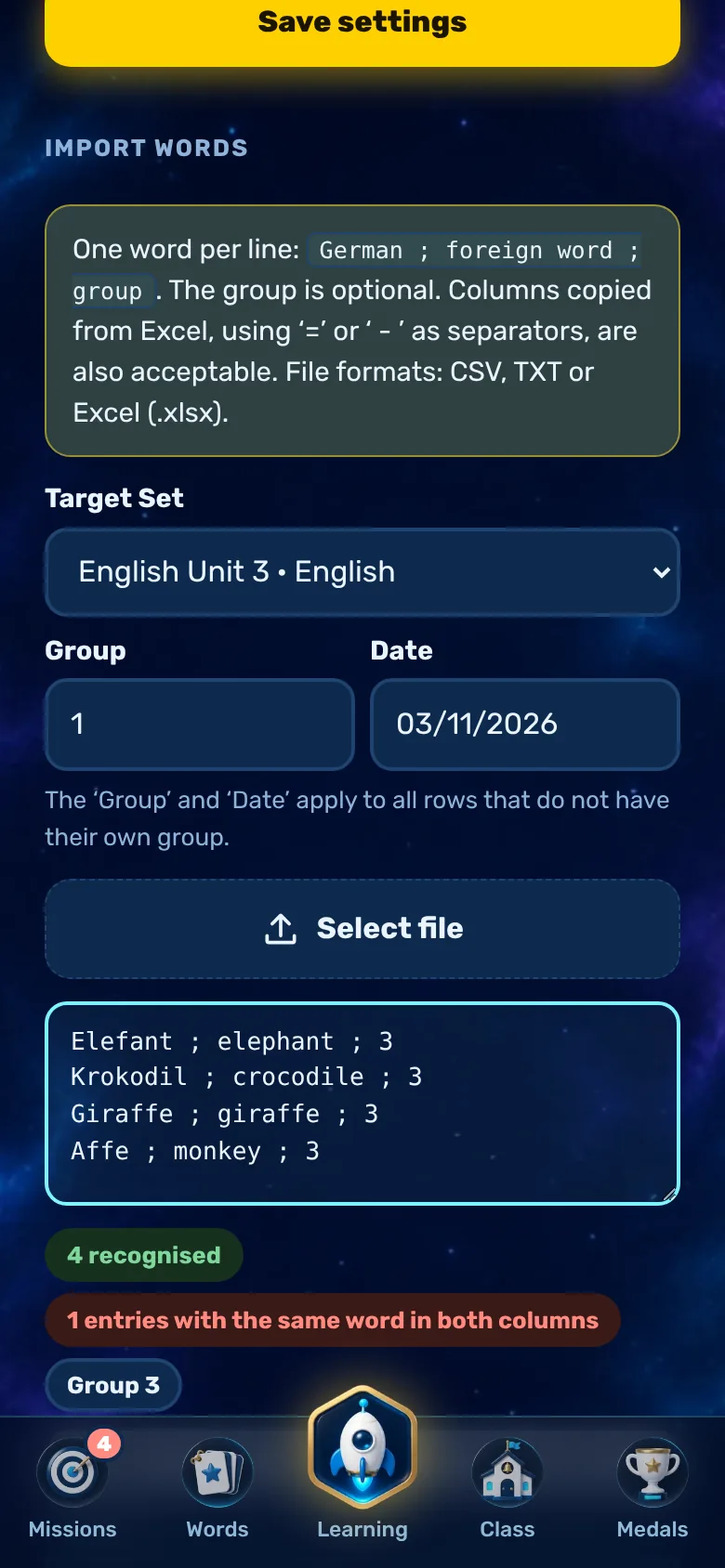
Instead of typing each word individually, you can import entire lists, for example from a spreadsheet.
One vocabulary word per line: German ; foreign word ; group. The group is optional.
Valid separators include a tab, semicolon, ‘=’, ‘-’ or comma. Columns copied from Excel also work.
Instead of pasting, you can select a file: CSV, TXT or Excel (.xlsx).
Select the target set, group and date. These apply to all rows without their own group.
The preview shows how many lines have been recognised. The header and duplicate lines are skipped, whilst the app highlights lines containing the same word in both columns.
10Order
Manage vocabulary sets
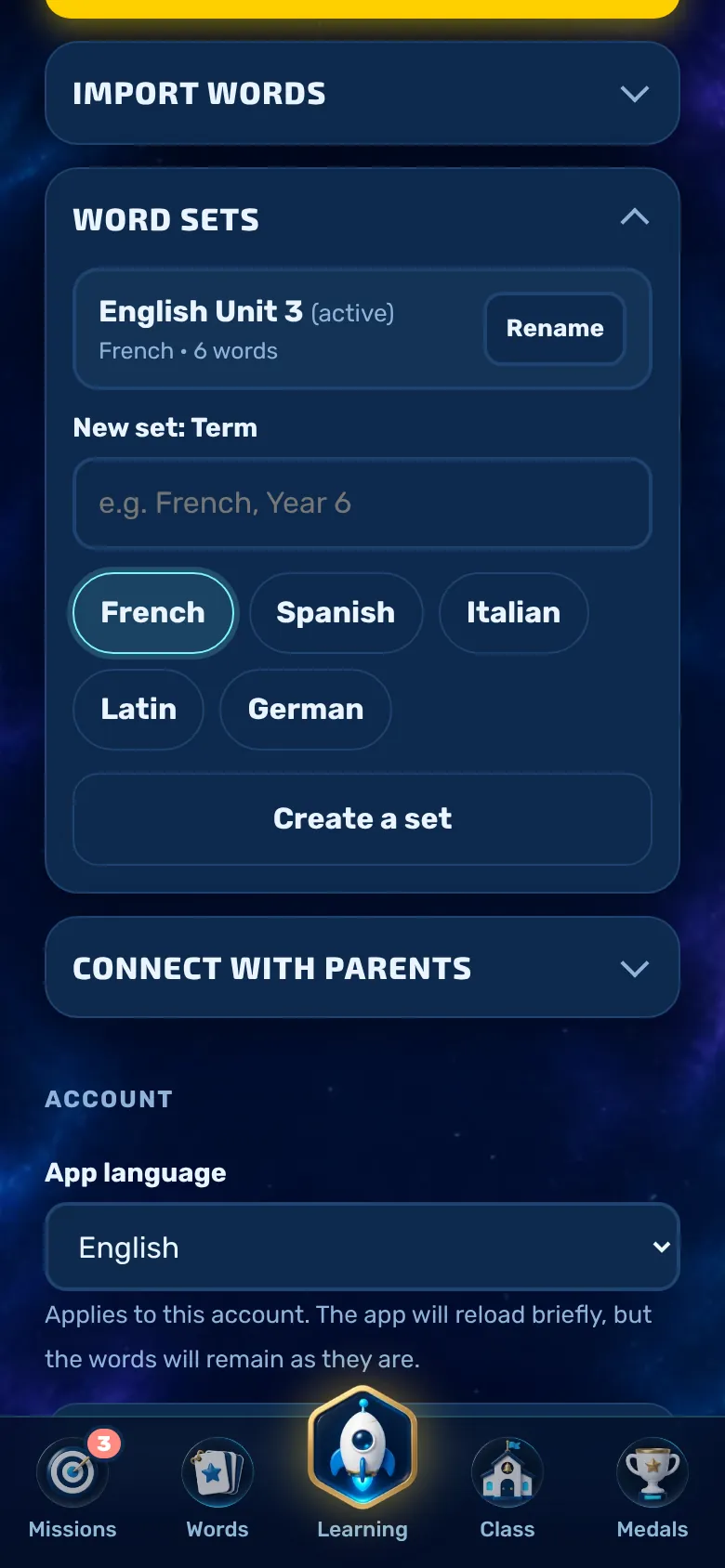
Vocabulary is organised into sets – for example, one per subject – and within these, into groups (lessons).
You can create a new set by entering a name and language, for example ‘French Year 6’.
Sets can be renamed and deleted. When a set is deleted, the vocabulary and scheduled class tests associated with that set are also removed.
Sprachen: Englisch, Französisch, Spanisch, Italienisch und Latein. Läuft die App in einer anderen Sprache, zum Beispiel Englisch, steht auch Deutsch zur Wahl: Dann lernt Ihr Kind Deutsch, und die Sprache der App ist die Ausgangssprache.
11Security
Manage account
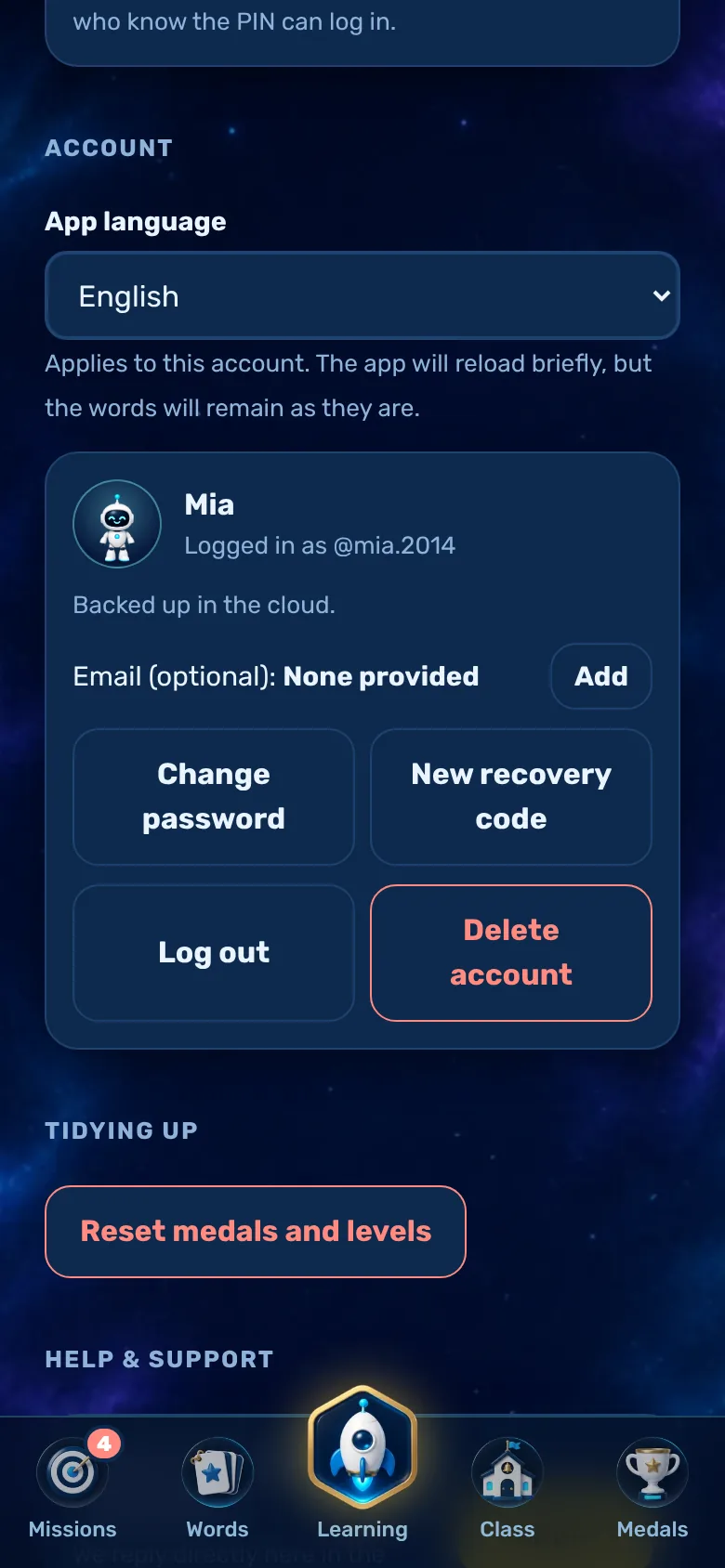
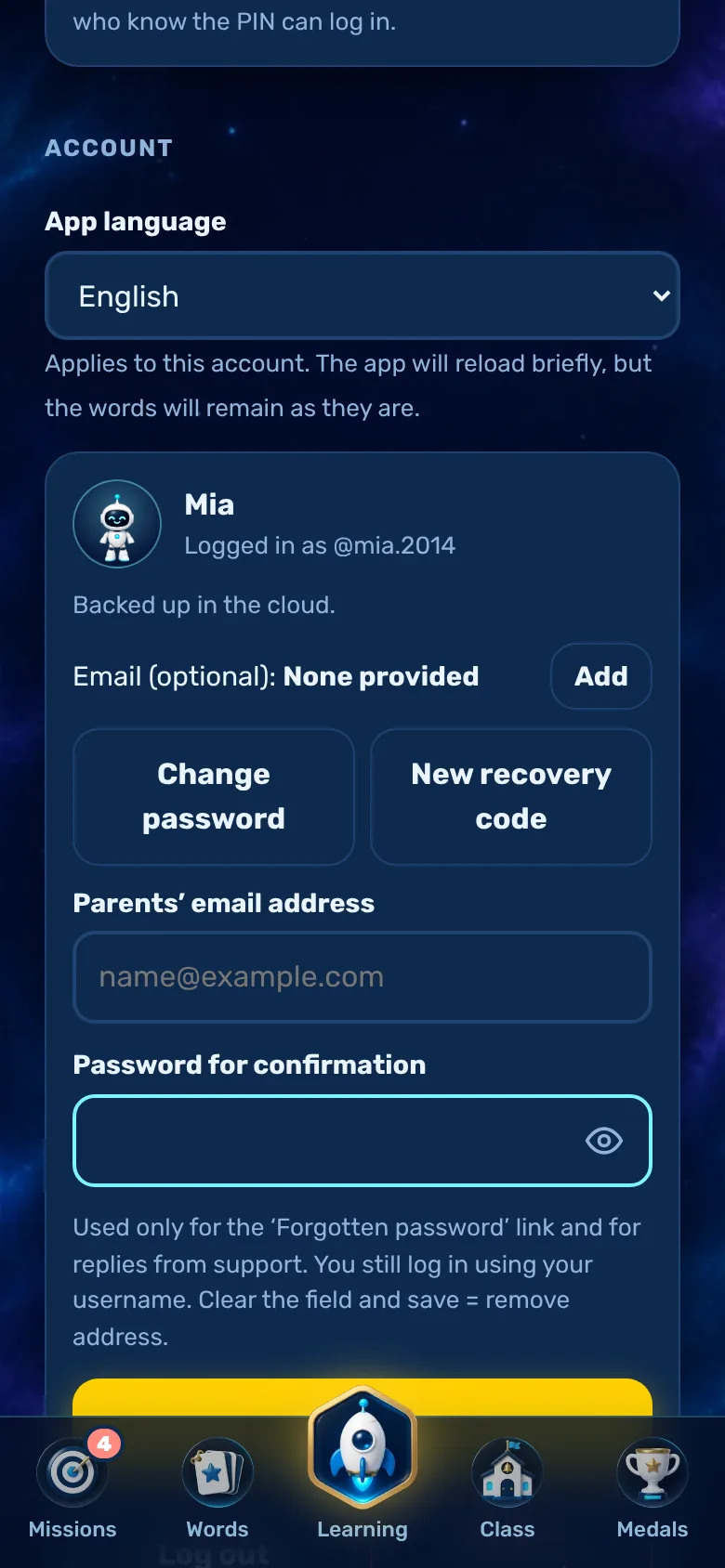
In the parents’ area, under ‘Account’, you can see whether the game progress is saved in the cloud, and this is where you manage the account.
Sprache der App: Deutsch, Englisch, Französisch, Spanisch, Italienisch oder Portugiesisch. Gilt für das ganze Konto; beim ersten Start gilt die Sprache des Geräts. Die Vokabeln selbst bleiben, wie sie eingetragen sind.
Email (optional): used only for ‘Forgotten password’ via a link and for replies from support. You still log in using your username. You can only change this with your password.
Change password and set a new recovery code (the old one will become invalid).
Log out: The app first uploads your progress and then deletes the data from the device. If there is no internet connection at the moment, it will ask you to connect.
Delete account: requires a password. This permanently deletes the account, game progress, class memberships and any classes you have created.
12If you get stuck
Forgotten password
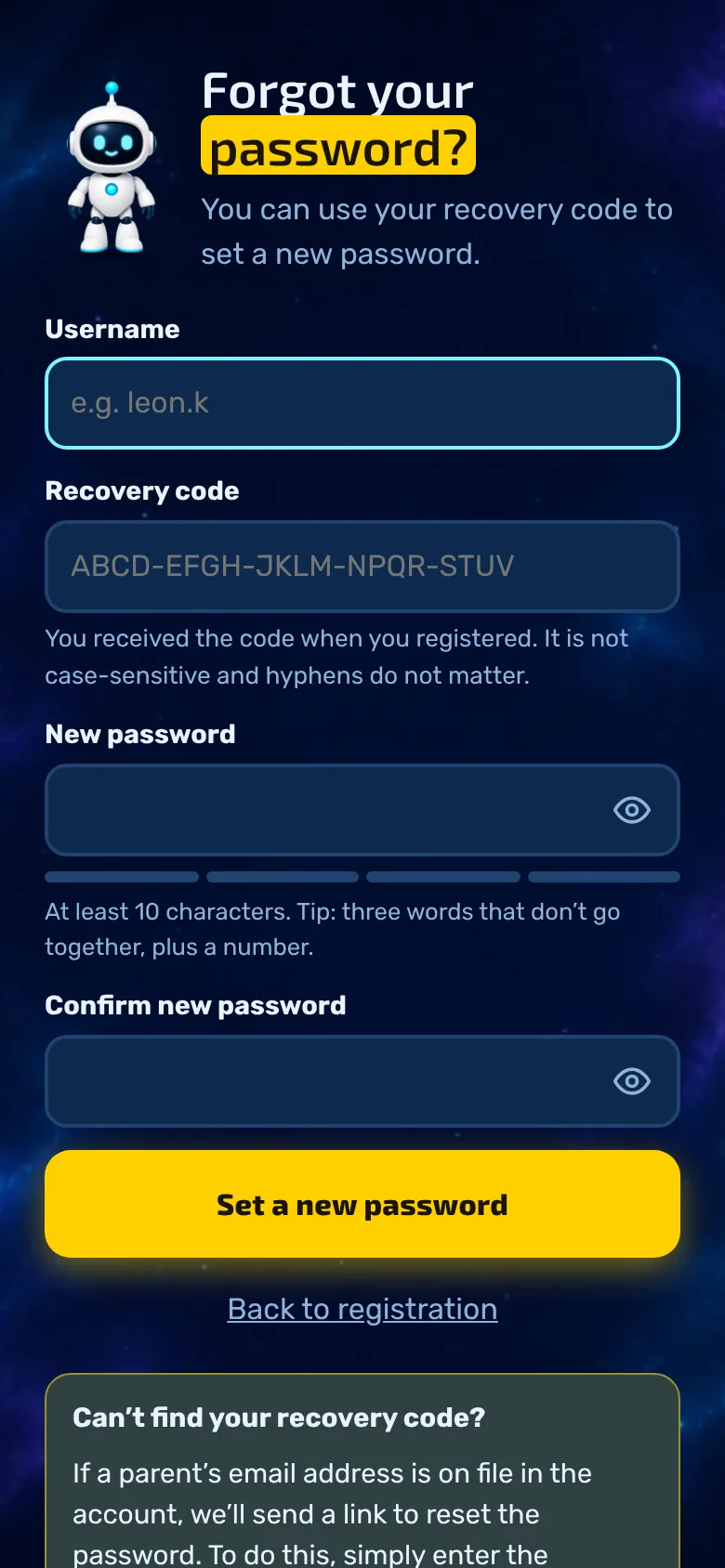
Your child can use the recovery code to set a new password themselves.
On the login page, tap ‘Forgotten your password?’, enter your username and recovery code, and choose a new password.
After 5 failed attempts, the user’s account is blocked for one hour.
After that, a new recovery code is generated, and all other devices are logged out.
If an email address has been provided, a reset link can be sent, provided that this feature has been set up. The recovery code is the most reliable method.
13Questions
Help and Support
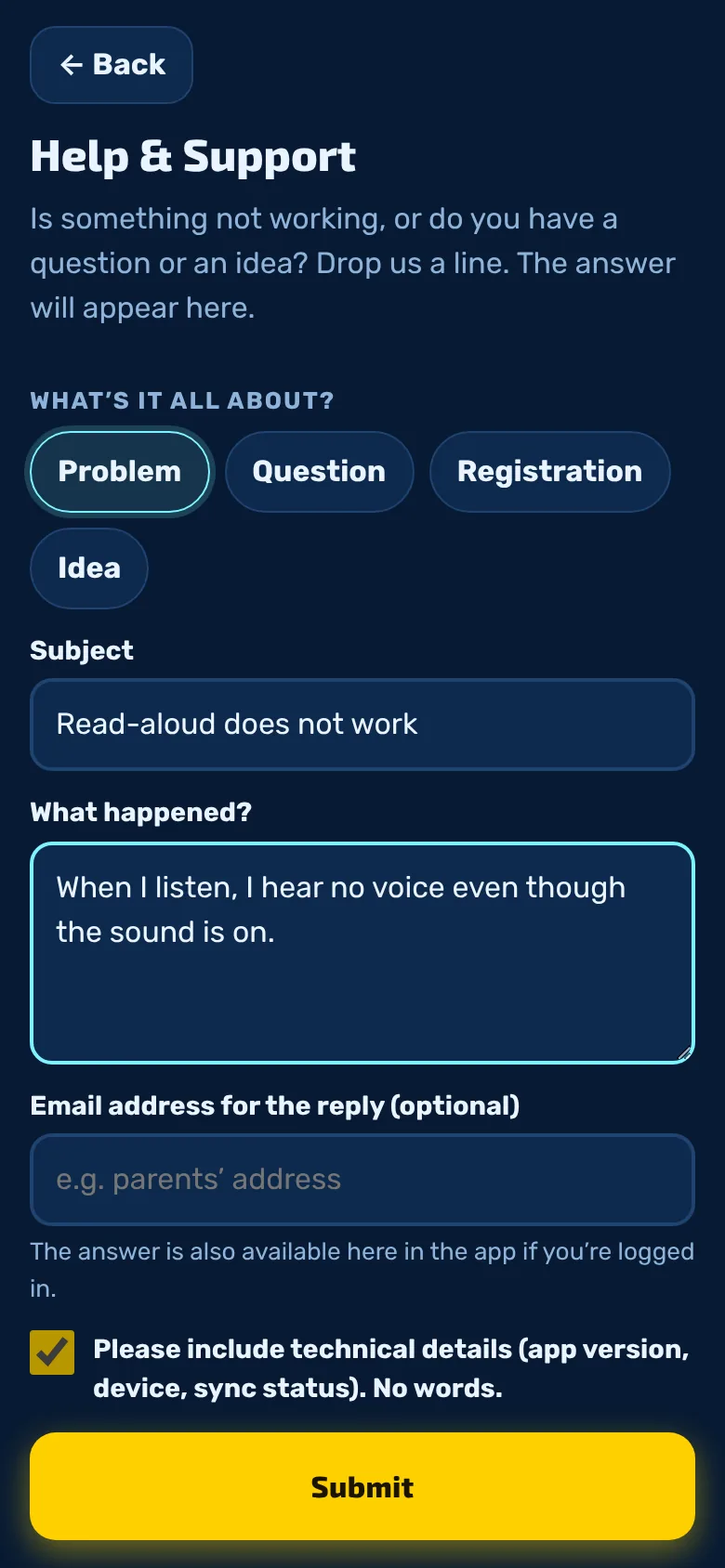
You can report problems or ask questions directly within the app, in the parents’ area under ‘Help & Support’. The reply will also appear there.
Select a category (problem, question, registration or idea), then enter a subject and write your message.
Technical information such as the app version and device details may be sent along with the data, but vocabulary is never included.
Under ‘My enquiries’, you can view the status and response. The robot notifies you of new replies.
You can also use the app without registering: on the login page, select ‘Problems? Contact support’. Five enquiries per hour are permitted per account.
14Safe for children
Data protection at a glance
Vokabel-Champion is a private, non-commercial project. The key details at a glance; full details can be found in the privacy policy.
No email address required: a username and password are sufficient.
Data within the EU: It is stored in a data centre in Ireland. The password is stored only as an unreadable hash value.
No adverts, no tracking, no in-app purchases. Coins are only available for practising.
Can be deleted at any time: in the parents’ area, the account and all associated data can be deleted.
15Practical
Als App installieren
Vokabel-Champion läuft im Browser und braucht keinen App-Store. Mit wenigen Schritten liegt die App mit eigenem Symbol auf dem Handy, dem Tablet oder dem Computer und startet ohne Adressleiste wie eine installierte App.
Klicken Sie in der Adressleiste rechts auf das Symbol „App verfügbar“ beziehungsweise „Installieren“.
Ohne Symbol: In Edge das Menü (drei Punkte), dann „Apps“ und „Diese Website als App installieren“. In Chrome das Menü (drei Punkte), dann „Streamen, speichern und teilen“ und „Seite als App installieren“.
Bestätigen Sie mit „Installieren“. Die App liegt danach im Startmenü und lässt sich an die Taskleiste anheften.
Wählen Sie in der Menüleiste „Ablage“ und dann „Zum Dock hinzufügen“ (ab macOS Sonoma).
Bestätigen Sie mit „Hinzufügen“. Die App liegt jetzt im Dock und im Ordner „Programme“.
Chrome auf dem Mac: wie unter Windows über das Installieren-Symbol in der Adressleiste.
Auf iPhone und iPad melden Sie sich in der App vom Home-Bildschirm einmal neu an. Konto, Vokabeln und Fortschritt bleiben dieselben.
You can practise even without an internet connection. Your progress will be uploaded the next time you go online.
Neue Versionen kommen von selbst. Falls etwas veraltet aussieht, die App einmal ganz schließen und neu öffnen.
Apps for the App Store and Google Play are in the pipeline. The account remains the same.
Entfernen: Die App lässt sich wie jede andere App löschen (Symbol lange drücken beziehungsweise in Windows über „Einstellungen“ und „Apps“). Das Konto und die Daten bleiben dabei erhalten.
Any more questions?
Do you have a question about the app, your account or data protection? We’ll reply by email.