Academy For children
For children
How to become a vocabulary champion: all the app’s features, step by step and with pictures. Tip: Read this page together with your parents, especially the section on the account.
Let’s get started
Create an account
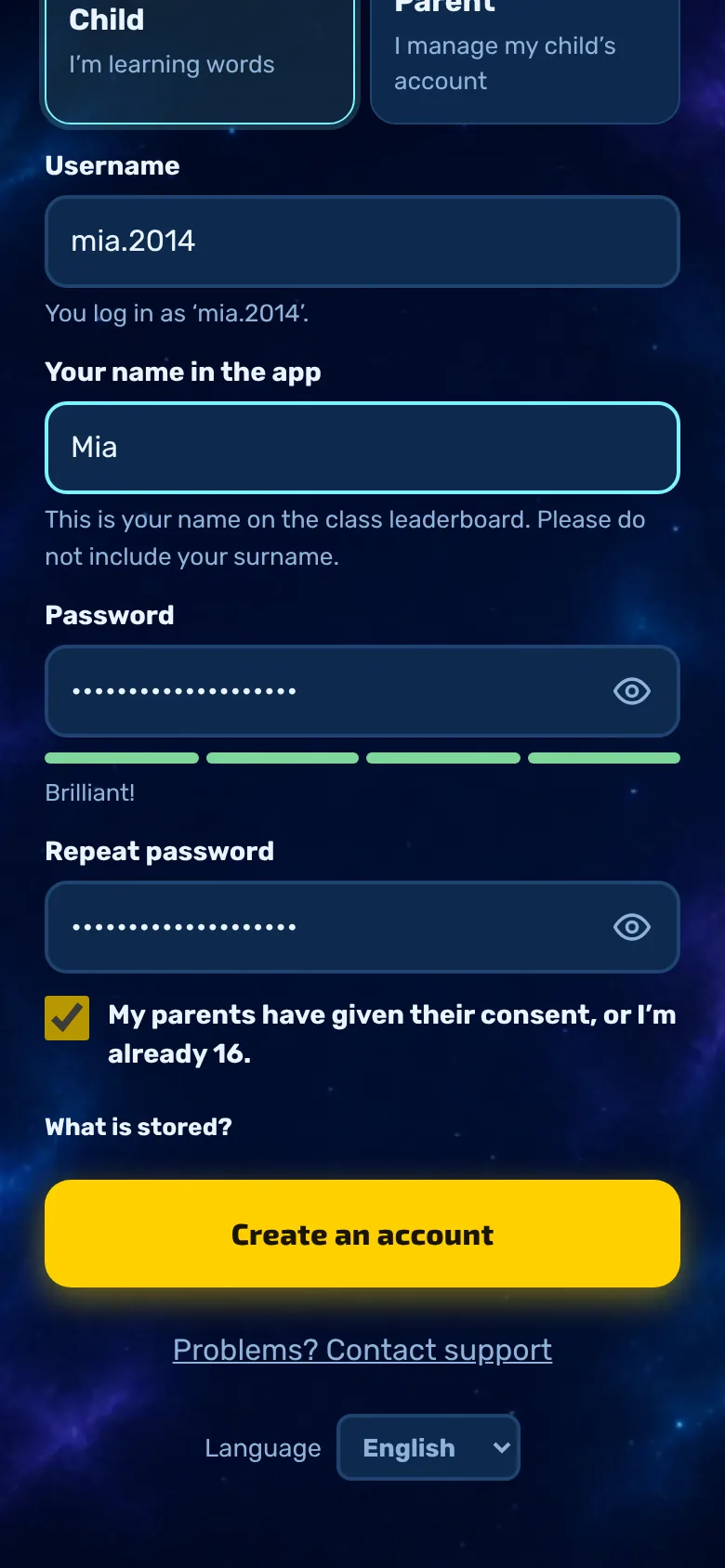
Each child has their own account. You don’t need an email address for this, just a username and a password.
- Username: 3 to 20 characters, must begin with a letter. Lowercase letters, numbers, full stops, hyphens and underscores are permitted, but no umlauts. You cannot change it later.
- Your name in the app: this is the name you’ll appear under in the class leaderboard. Please use only a first name or nickname, not a surname.
- Password: at least 10 characters. The bar shows how strong it is.
- Tick box: Your parents have given their consent, or you are already 16. You cannot proceed without ticking this box.
Tip: Three words that don’t go together, plus a number, make a good password – for example, ‘sunflower-table-42’.
Important
The recovery code
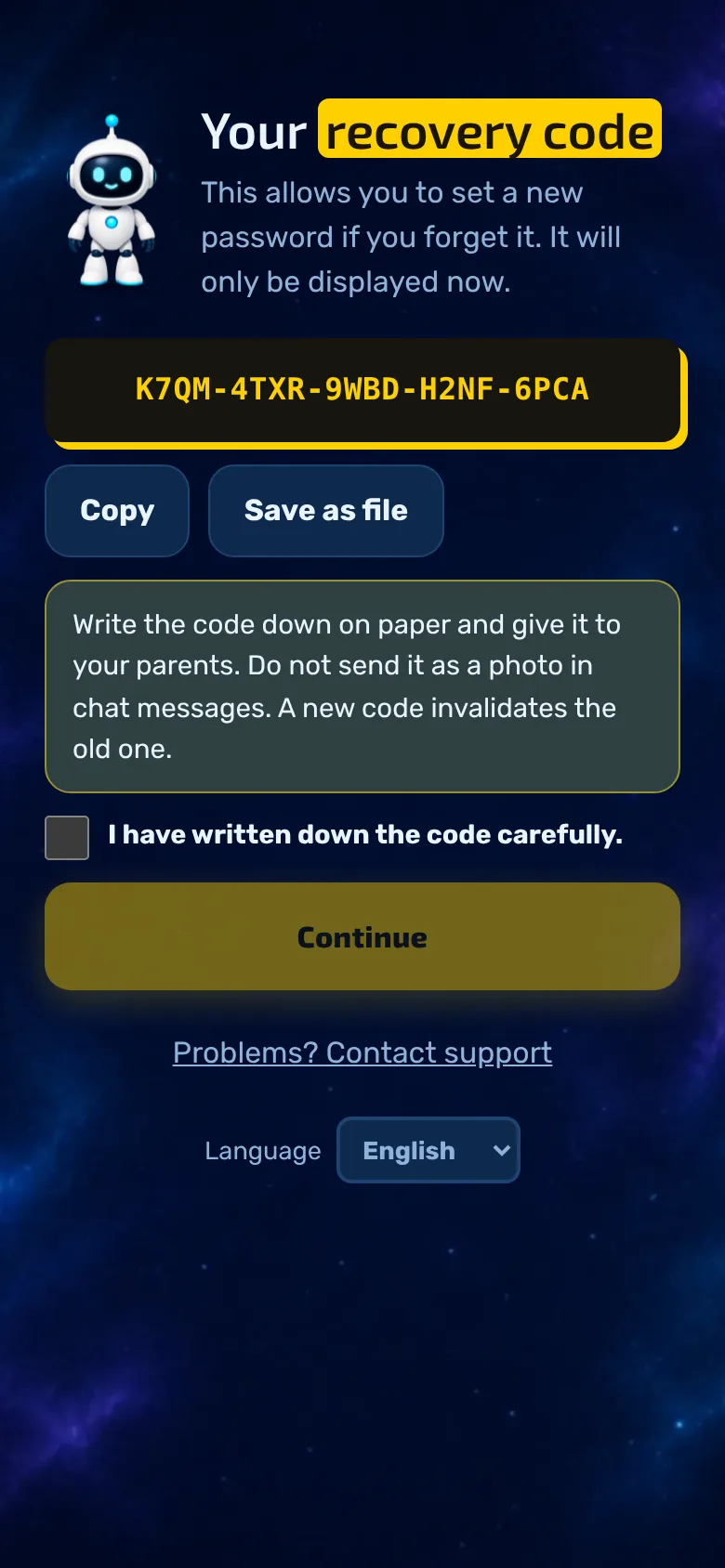
After logging in, the app displays your recovery code once. You can use this to set a new password if you forget yours.
- Write the code down on paper and give it to your parents. Do not send it as a photo in a chat.
- You can copy it or save it as a file.
- Only once you’ve ticked ‘I have written the code down safely’ can you proceed by clicking ‘Next’.
- It is only displayed now. Your parents can create a new one in the parents’ area; the old one will then be invalid.
Every day
Log in
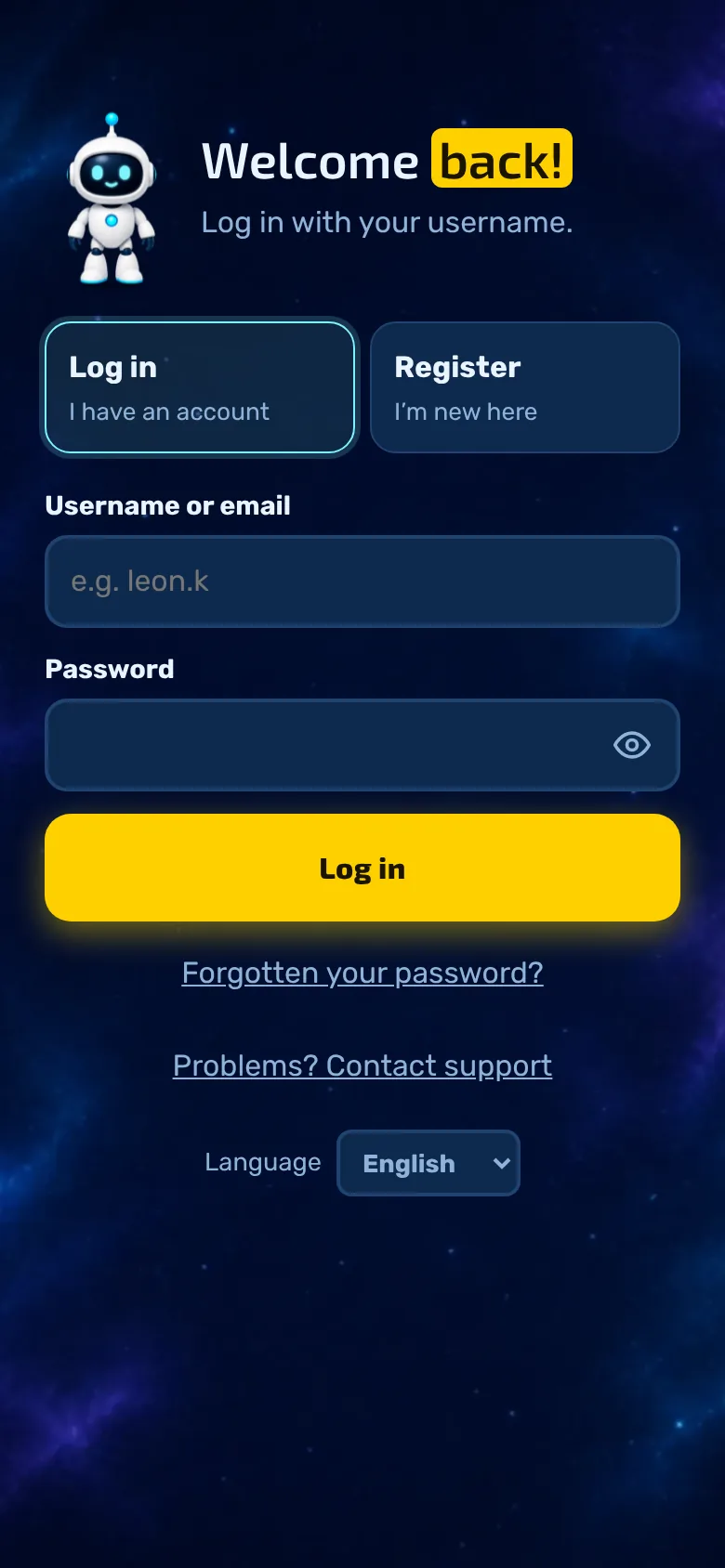
On a new mobile phone or after logging out, you log in using your username and password. Your progress is loaded from your account.
- Enter your username and password, then click ‘Log in’.
- You can view the password by tapping the eye icon.
- Forgotten your password? Tap on ‘Forgotten your password?’ and enter your recovery code (instructions for parents).
- New here? Tap ‘Register’ at the top.
First launch
Name, colour and first set
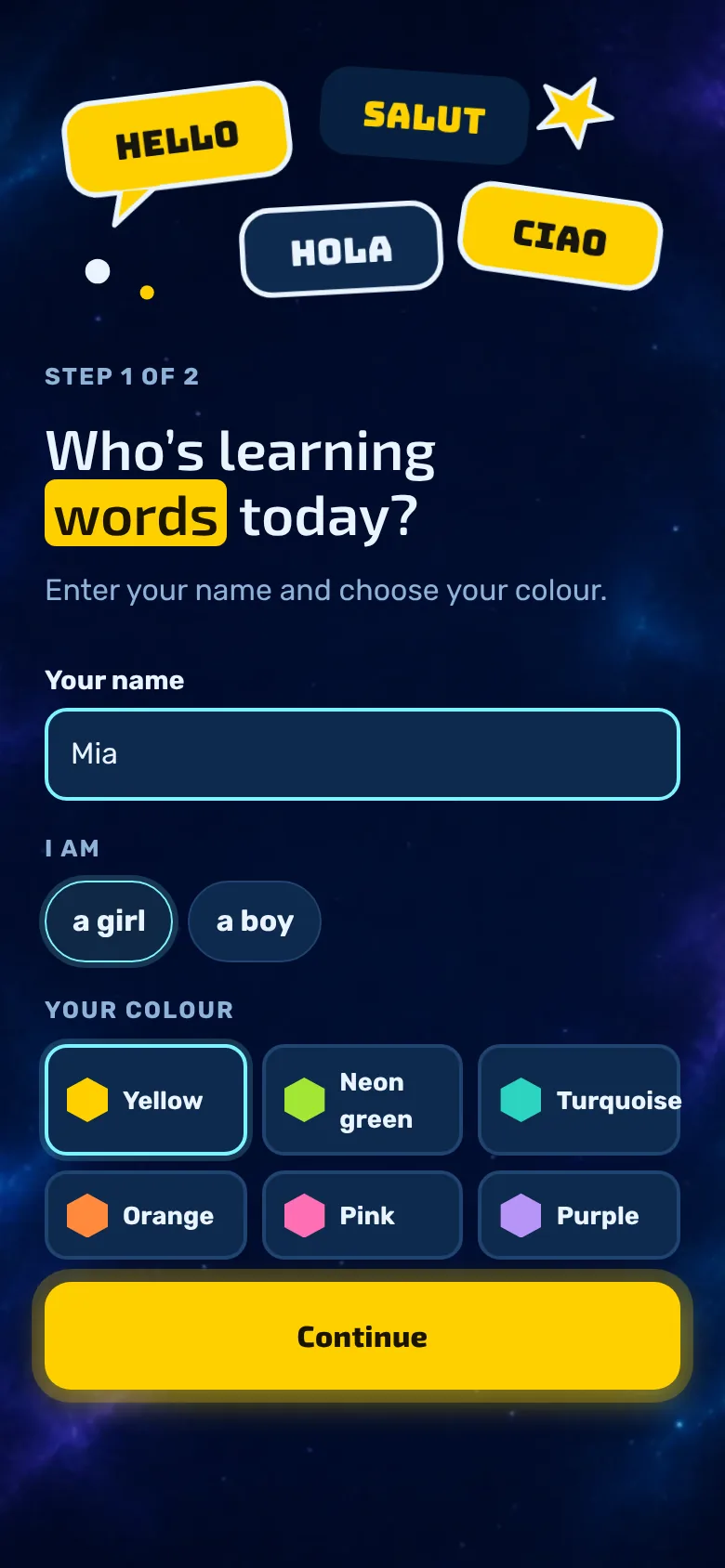
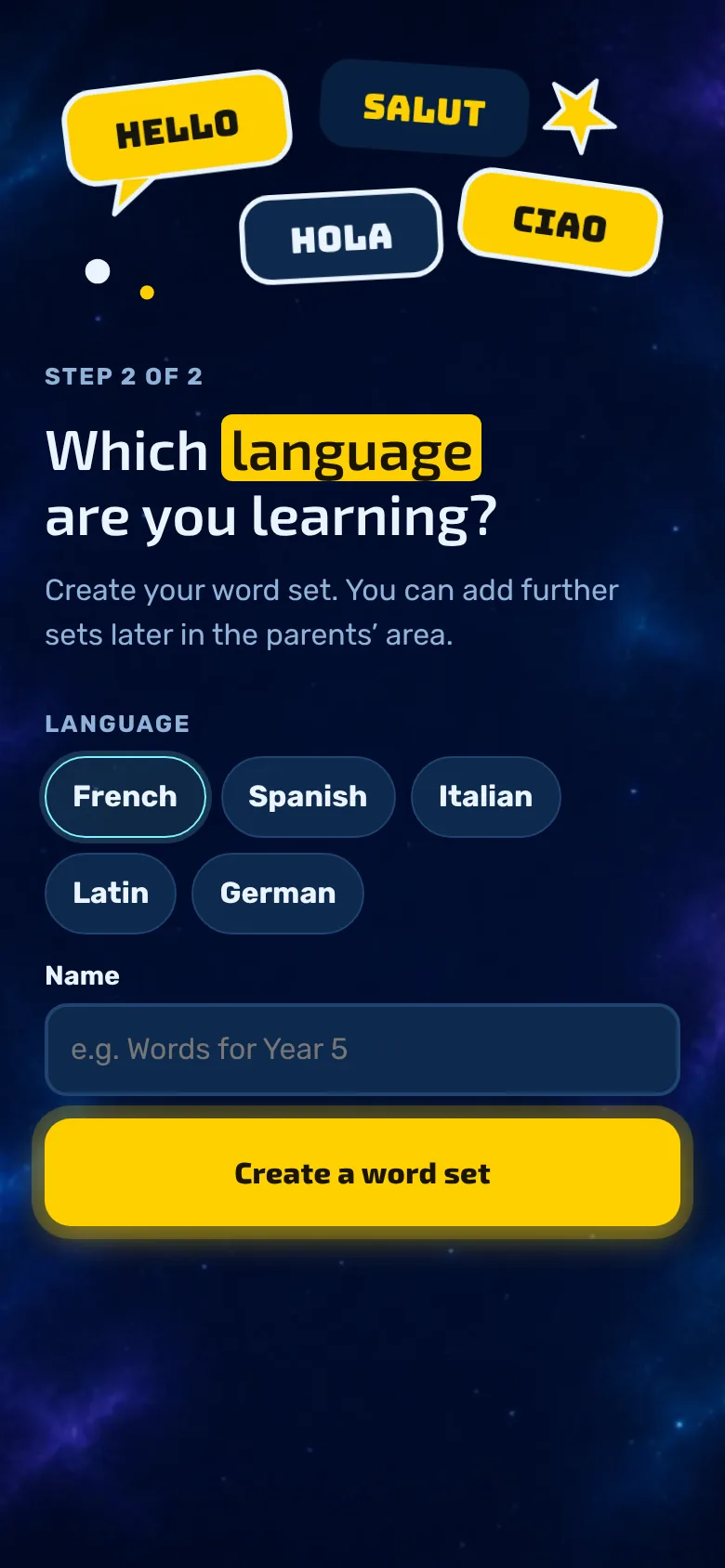
When you launch the app for the first time, you set it up in two steps.
- Step 1: Enter your name, choose whether you’re a girl or a boy (optional) and pick a colour. This information only determines which items appear first in the shop.
- Schritt 2: Sprache wählen (Englisch, Französisch, Spanisch, Italienisch, Portugiesisch oder Latein; läuft die App in einer anderen Sprache, auch Deutsch) und dem ersten Vokabel-Set einen Namen geben, zum Beispiel „Englisch Unit 3“.
Tip: You can create further sets and languages later, for example one per subject.
Your home screen
The ‘Learning’ tab
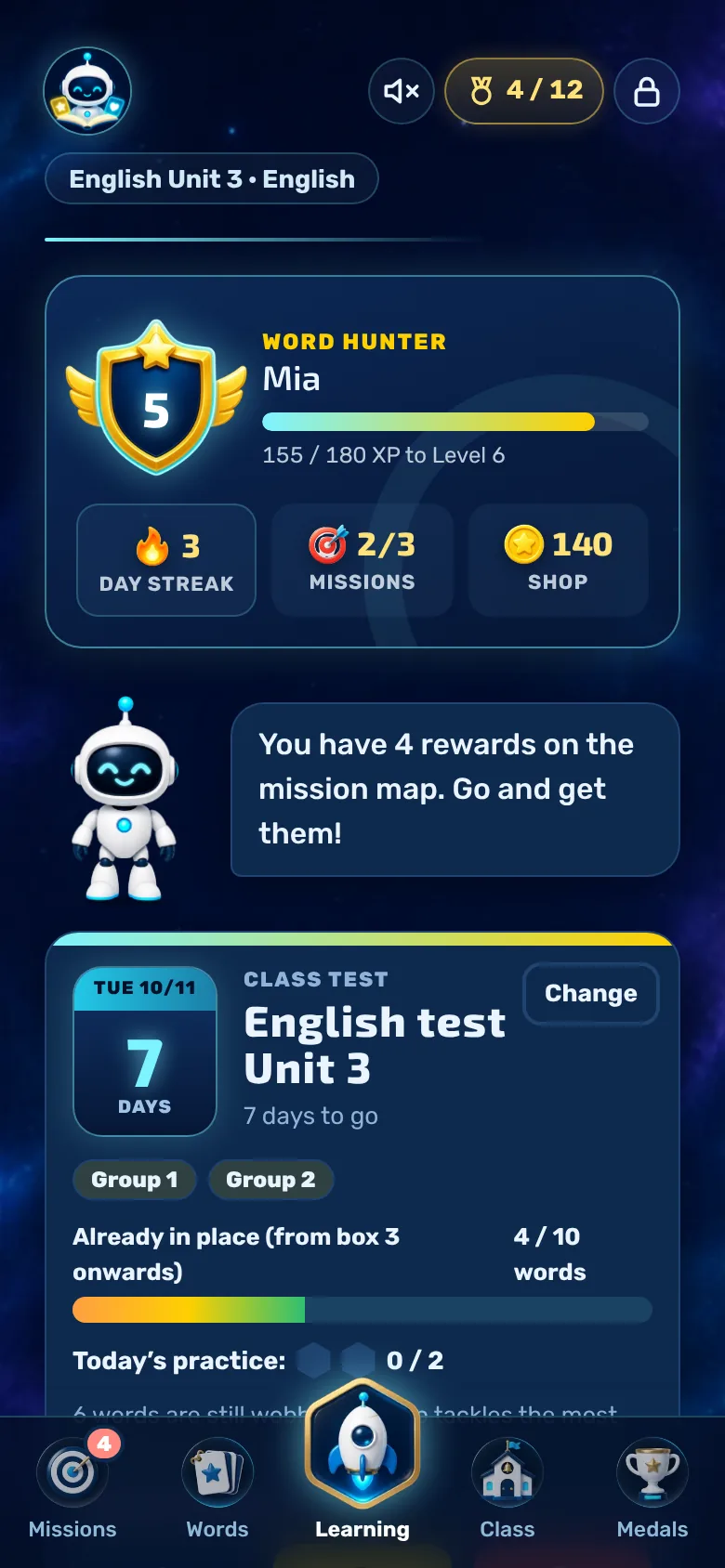
This is where you end up after launching the app. At the top, you’ll see your player card; below that, the robot gives you tips.
- Player card: your rank, your level with an XP bar, your streak, the daily missions you’ve completed and your coins. Tap on ‘Missions’ or ‘Coins’ to open the mission card or the shop.
- Robot: It shows you the most important things first, such as rewards you can claim or an upcoming class test. Each tap brings up a new phrase.
- At the bottom, you’ll find five tabs: Missions, Vocabulary, Learn (the large button), Class and Medals.
- In the top right-hand corner, you can select the vocabulary set, switch the sound on or off, and see the padlock icon for the parents’ area.
The most important thing
Enter vocabulary
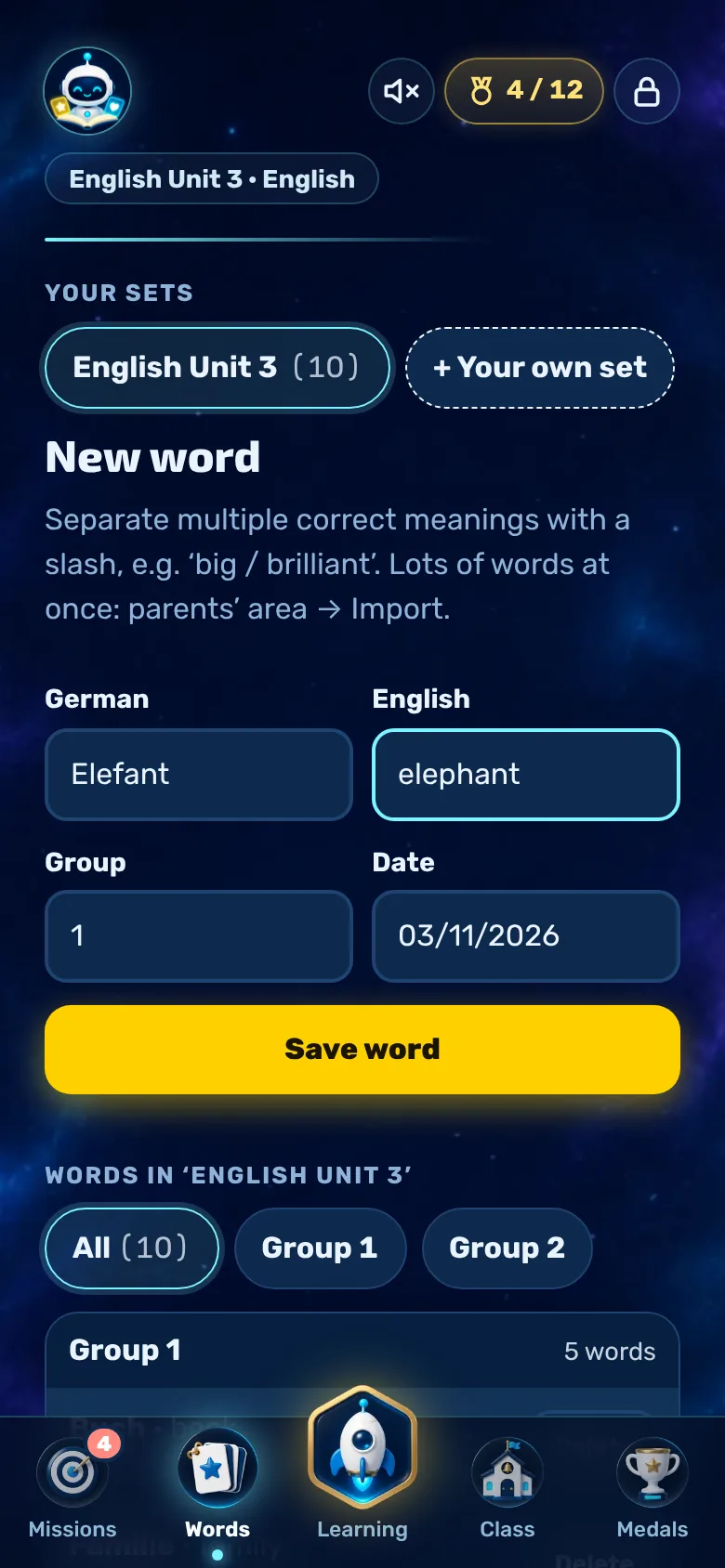
In the ‘Vocabulary’ tab, you enter the words from your school textbook.
- Fill in the German and foreign language terms. Separate multiple correct meanings with a slash, for example ‘groß / großartig’.
- Group: The number of the lesson or unit. This allows you to practise just one group later on.
- Date and ‘Save vocabulary’.
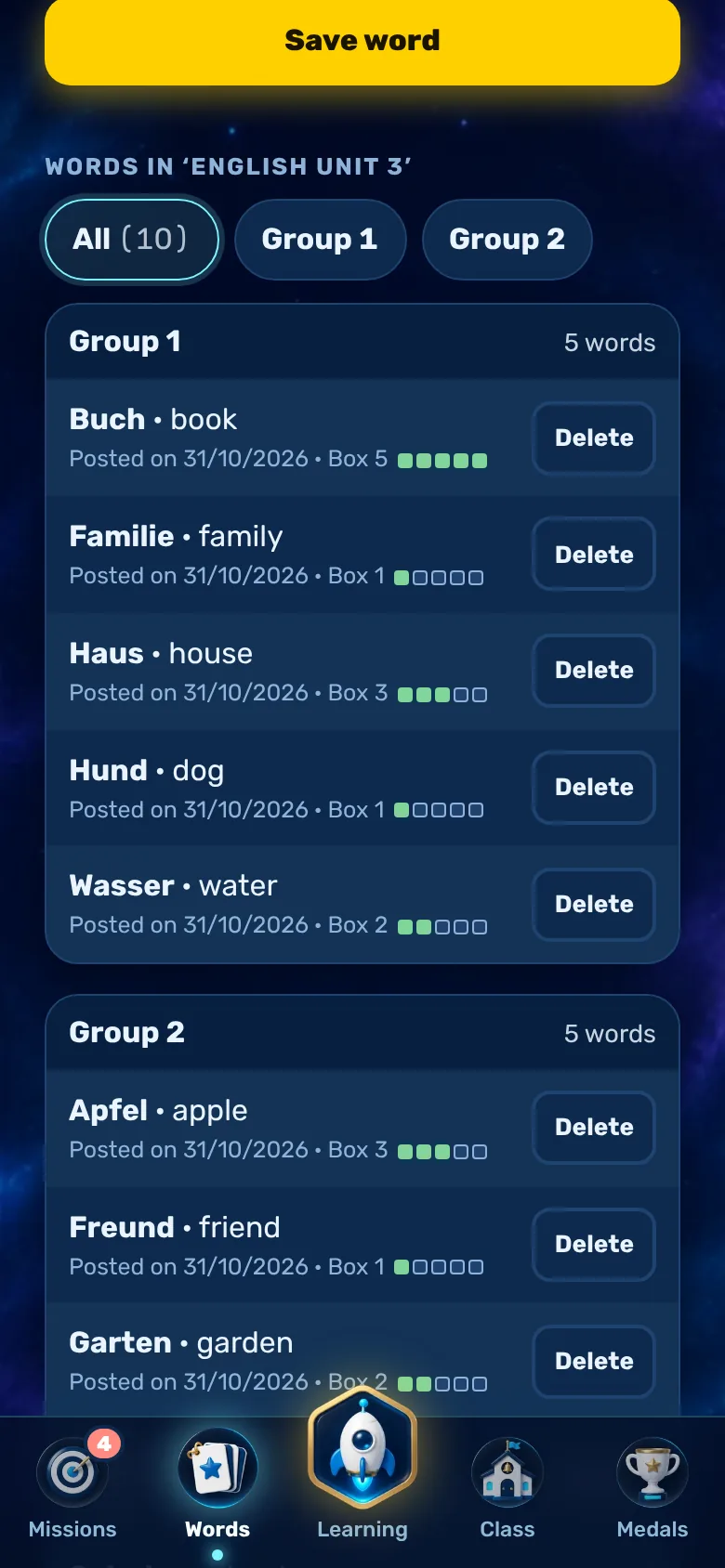
- In the list, you can see all the words organised by group. The dots indicate which compartment of the card index a word is in. Tap to edit, or ‘Delete’ to remove.
- Too many words at once? Parents can import them into the parents’ area.
Tip: You cannot change words provided by your teacher. They update automatically. You can add your own words to a separate set.
Practise
Stop training
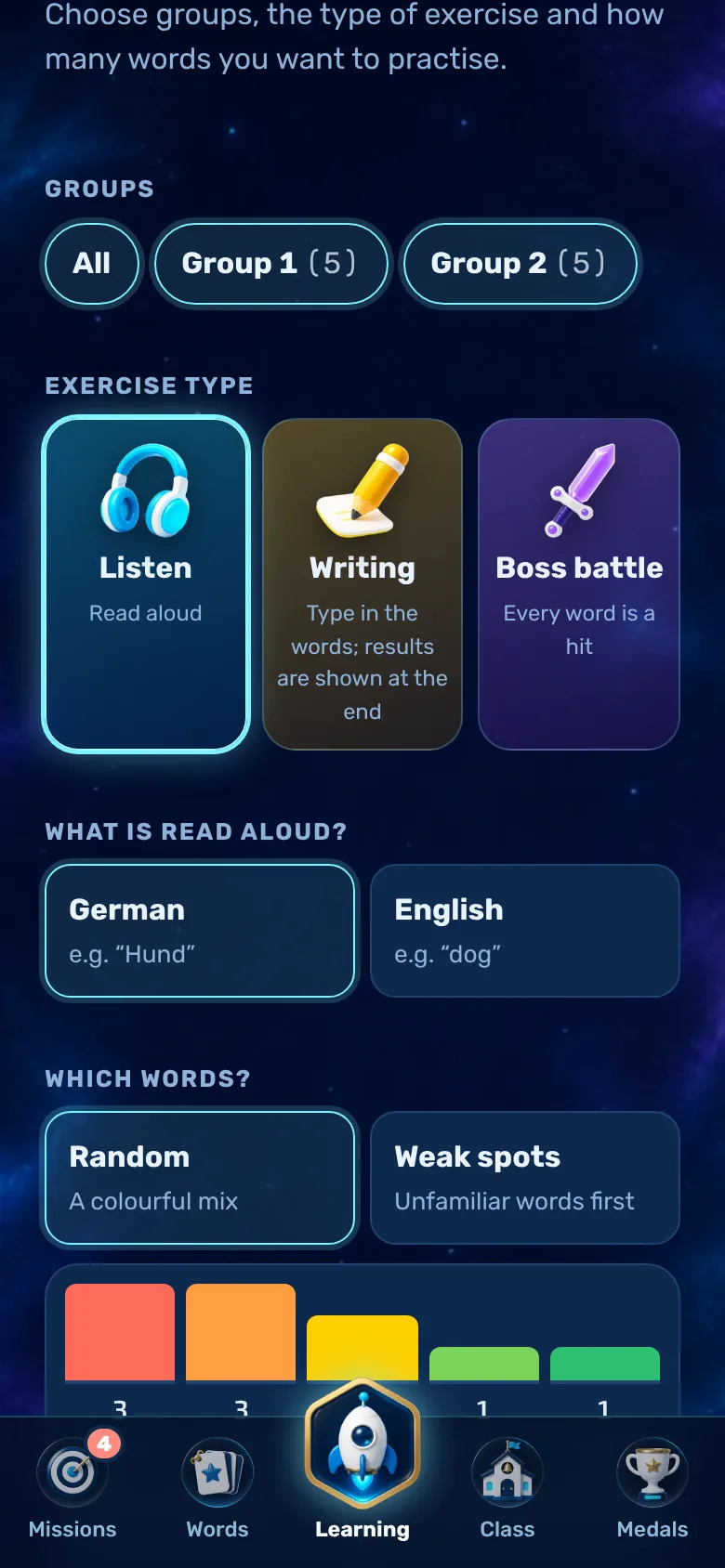
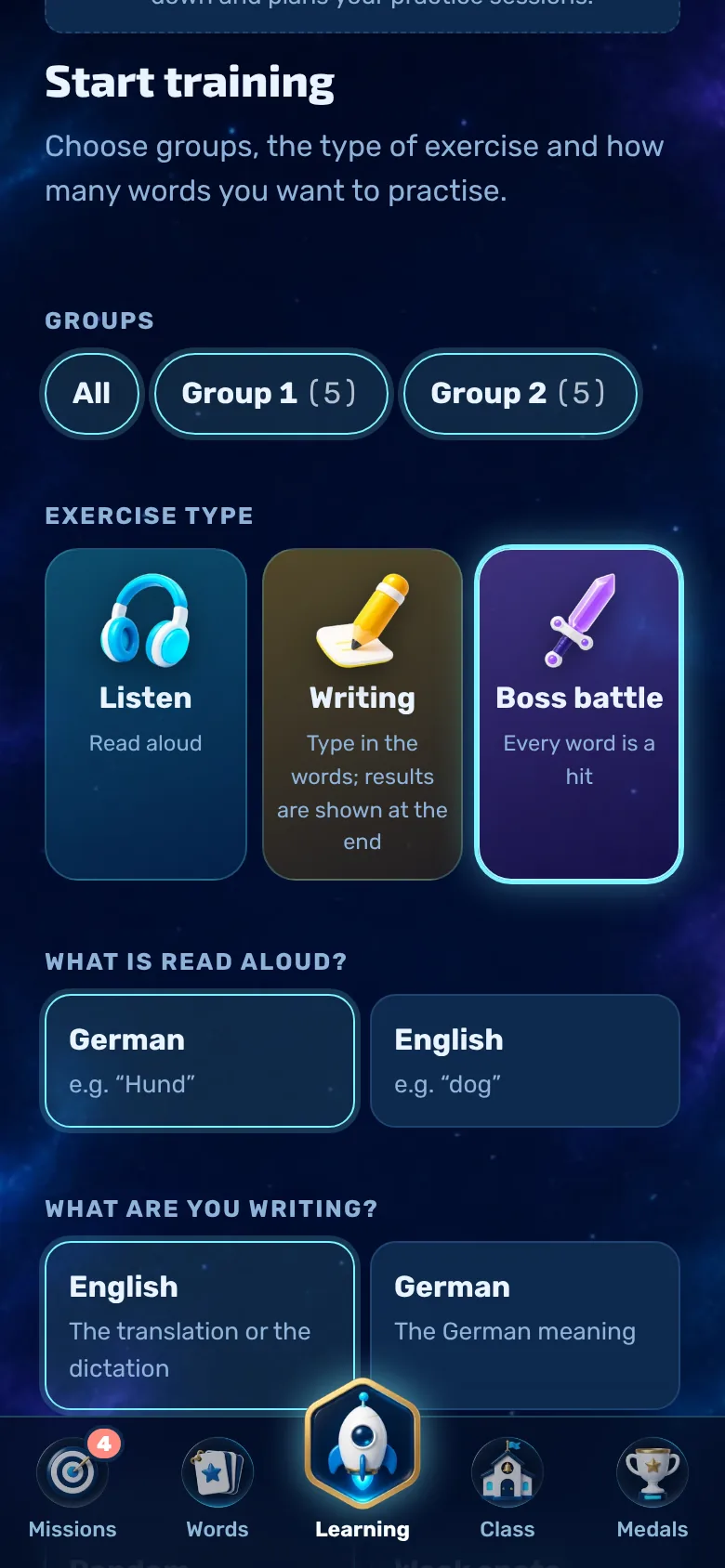
In the ‘Learning’ tab, you can set how you want to practise in just a few taps.
- Groups: Select one or more lessons, or ‘All’.
- Exercise types: listening, writing or boss battle (see below).
- What is read aloud? German or the foreign language.
- What are you writing? The translation or the German meaning. Listening to and writing in a foreign language is a dictation.
- Which vocabulary words? ‘Random’ mixes everything up. ‘Weak spots’ tackles the words you’re unsure of first.
- How many? Use the slider or select ‘All’. Then tap ‘Start training’.
Good to know: The foreign word never appears on the screen whilst you’re practising. It’s only read aloud so that you really do remember it.
This is how you’ll remember more
The flashcard box
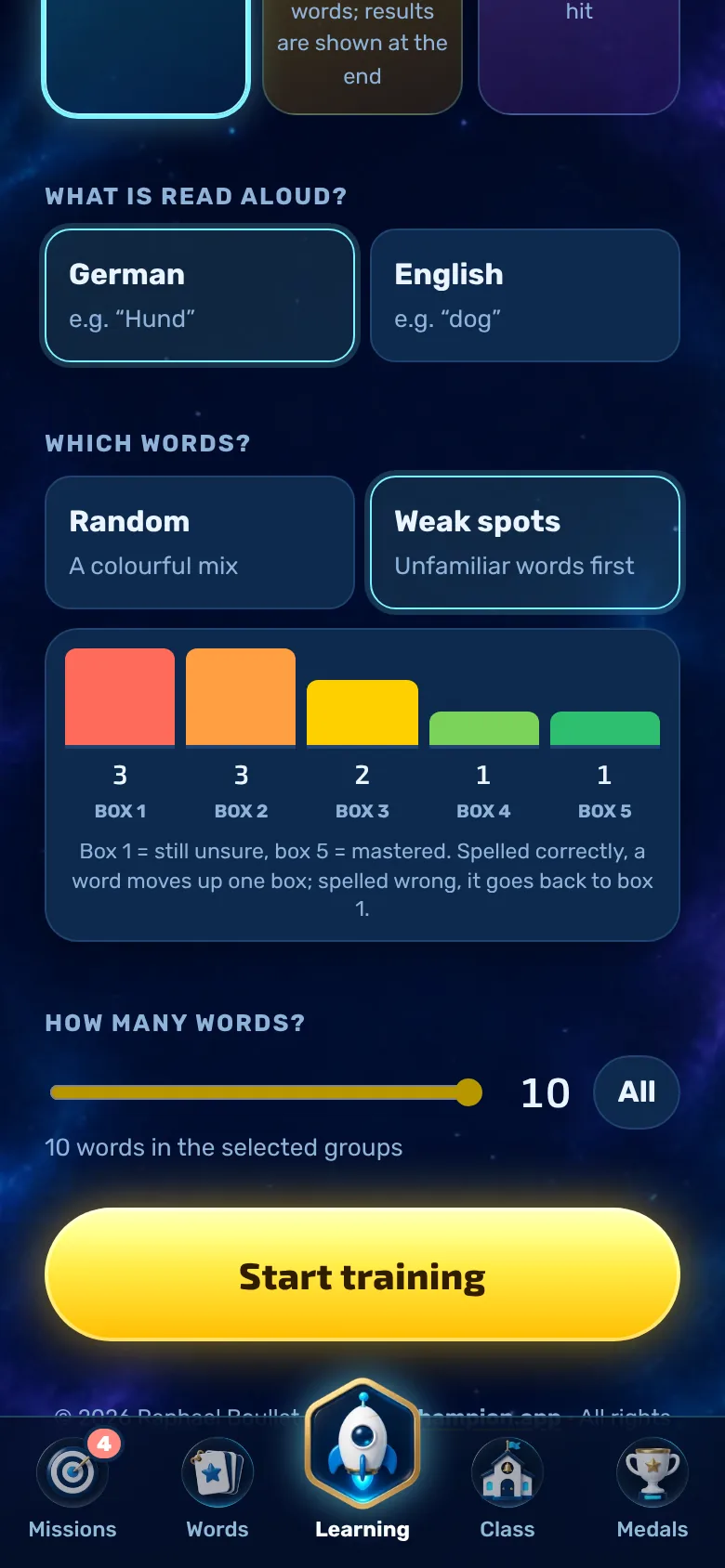
Each word is categorised into one of five categories. Category 1 is called ‘uncertain’, and Category 5 is called ‘mastered’.
- If you spell a word correctly, it moves one compartment further along (up to compartment 5 at most).
- If you spell it wrong, it jumps back to compartment 1.
- The colourful bars show you how many words there are in each subject.
- Only the ‘Writing’ and ‘boss battle’ sections change the subjects. It does not include an audio feature.
Exercise type 1
Listen
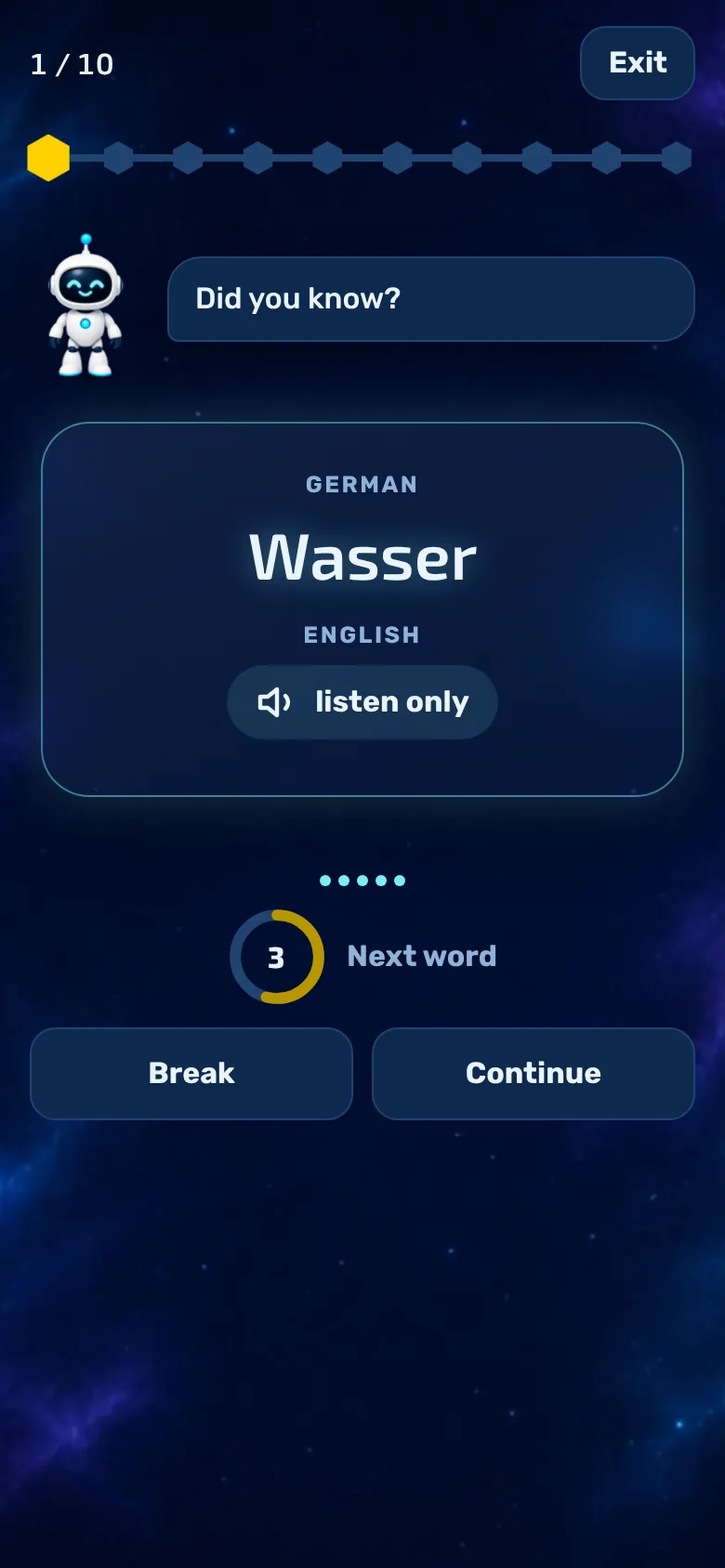
To get to know the app and get started: the app reads the words out to you; you don’t have to type anything.
- The word is read aloud, followed shortly afterwards by the answer.
- A ring shows how long it is until the next word. Tap ‘Pause’ to stop, or ‘Continue’ to carry on straight away.
- Listening exercises are not marked and do not affect subject grades.
- Your parents can set the pause between words in the parents’ area (2 to 30 seconds).
Exercise type 2
Writing and assessment
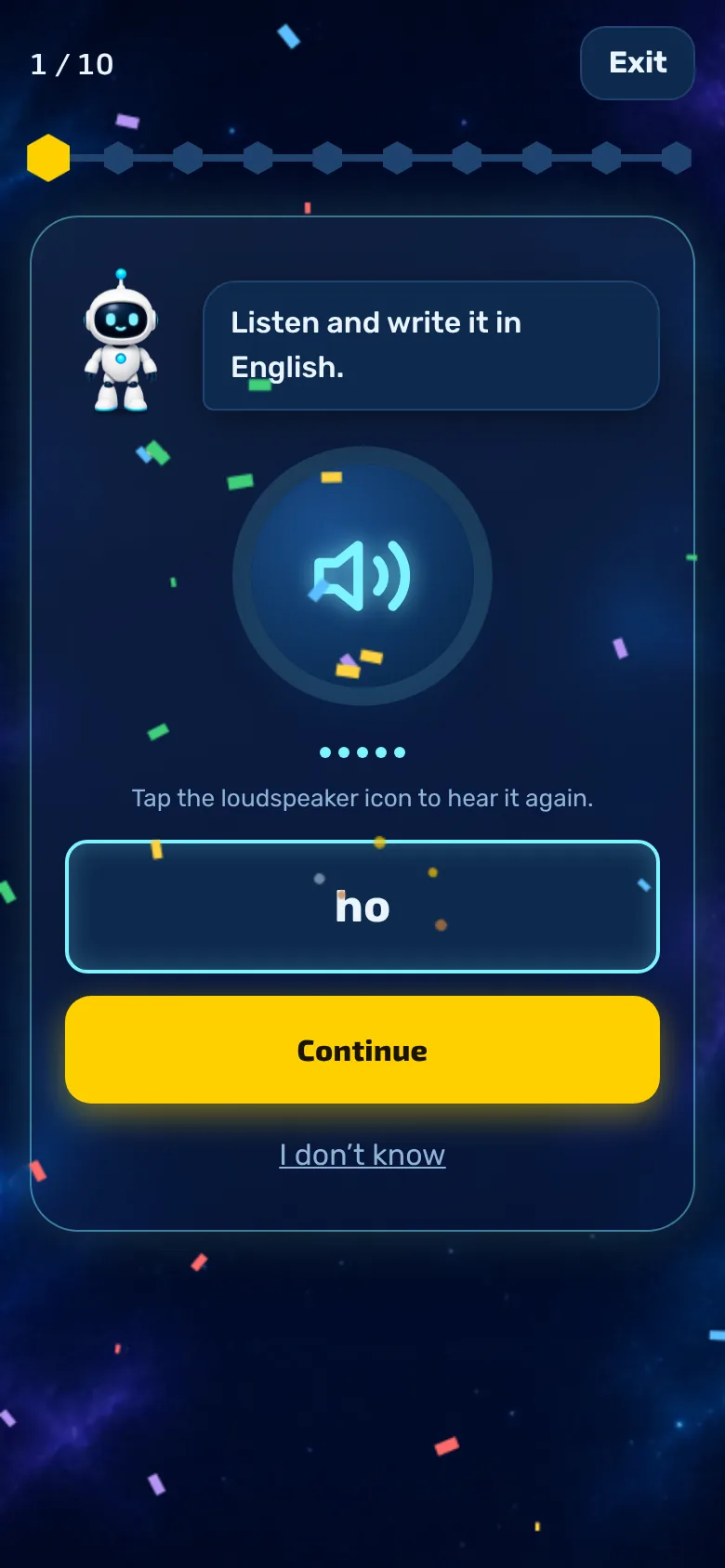
You hear a word and type in the answer.
- Tap the loudspeaker icon if you want to hear the word again.
- ‘I don’t know’ counts as wrong, but it gives you the answer.
- Spaces at the edges don’t matter. The app distinguishes between upper and lower case, unless your parents have disabled this feature.
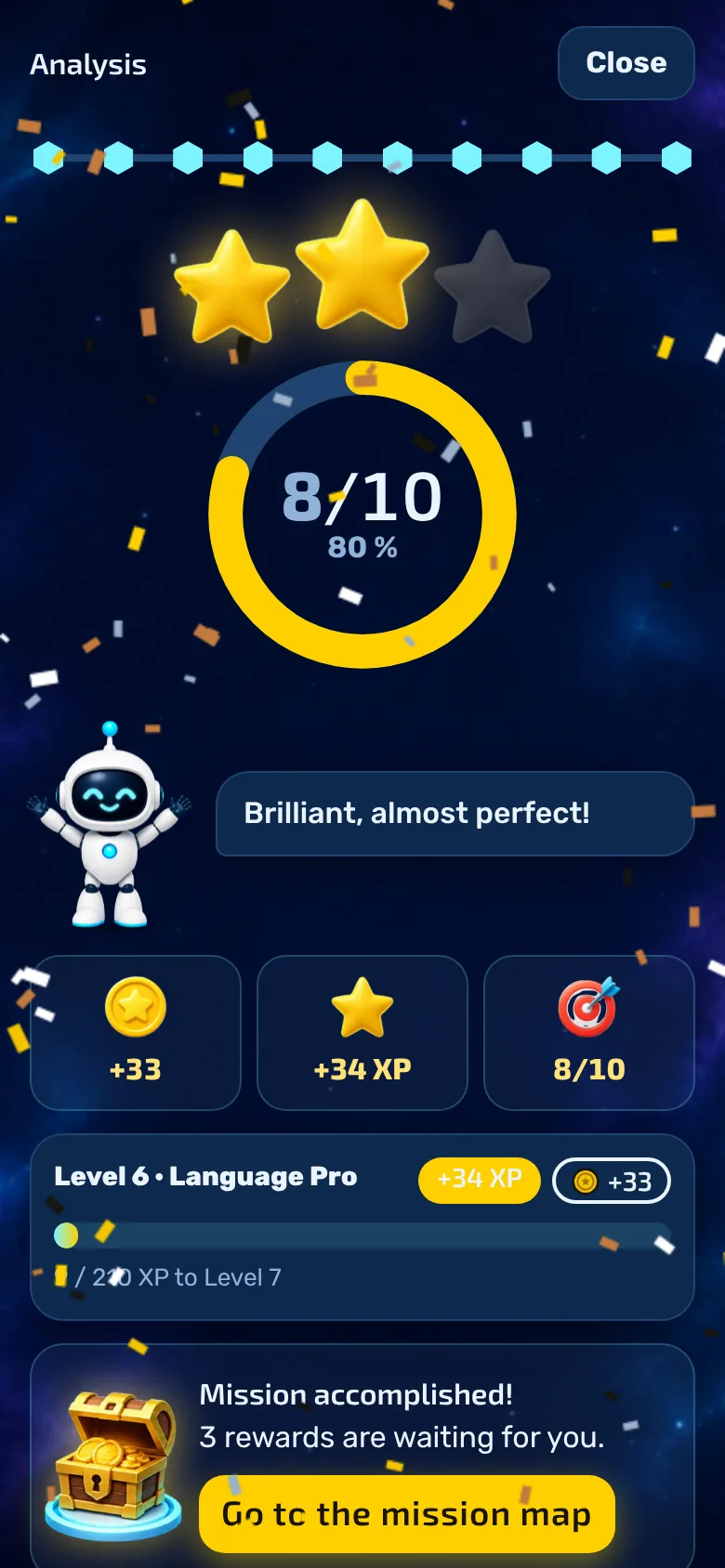
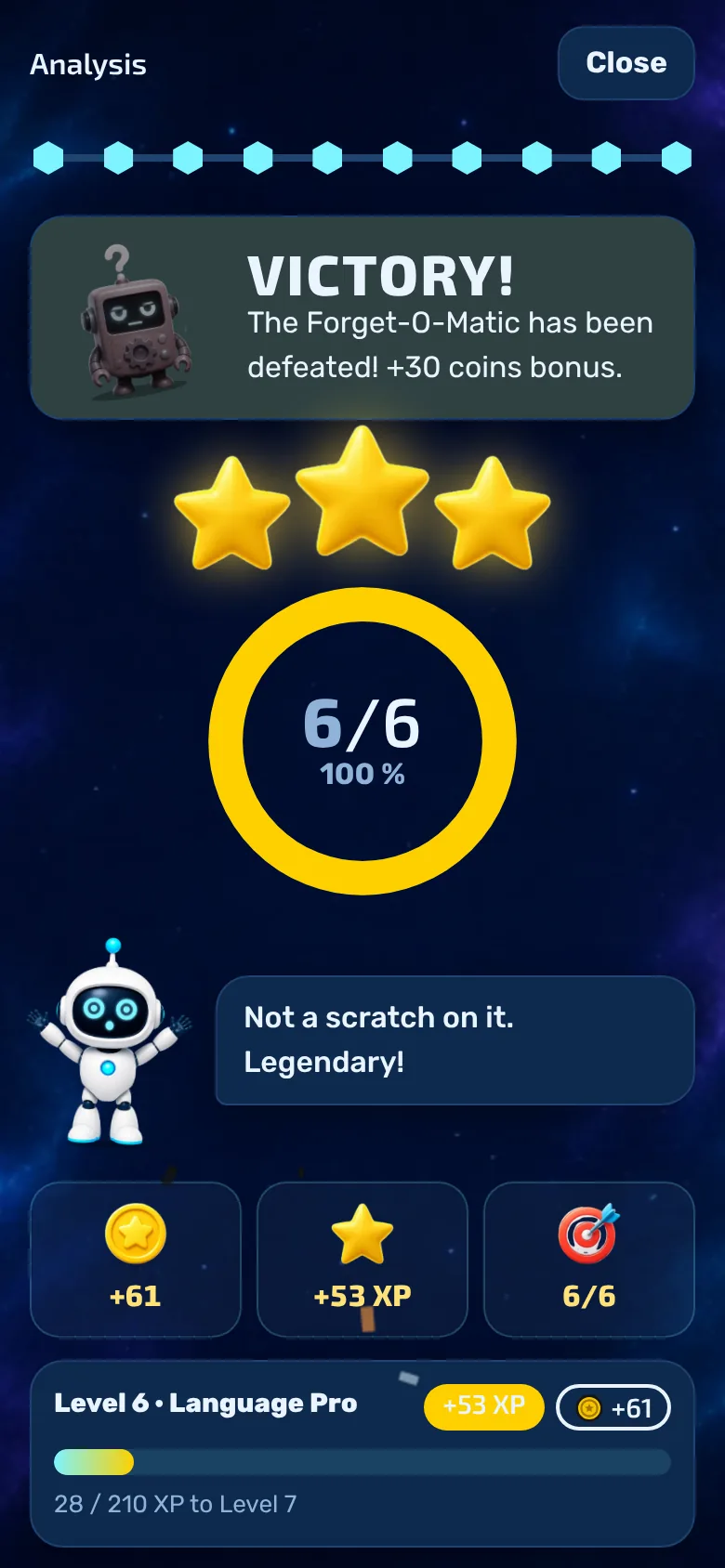
- At the end, there is a star-based assessment: 100 per cent earns 3 stars, 80 per cent or more earns 2, and 50 per cent or more earns 1.
- With ‘Revise mistakes again’, you only revise the words you got wrong.
Exercise type 3
Boss battle
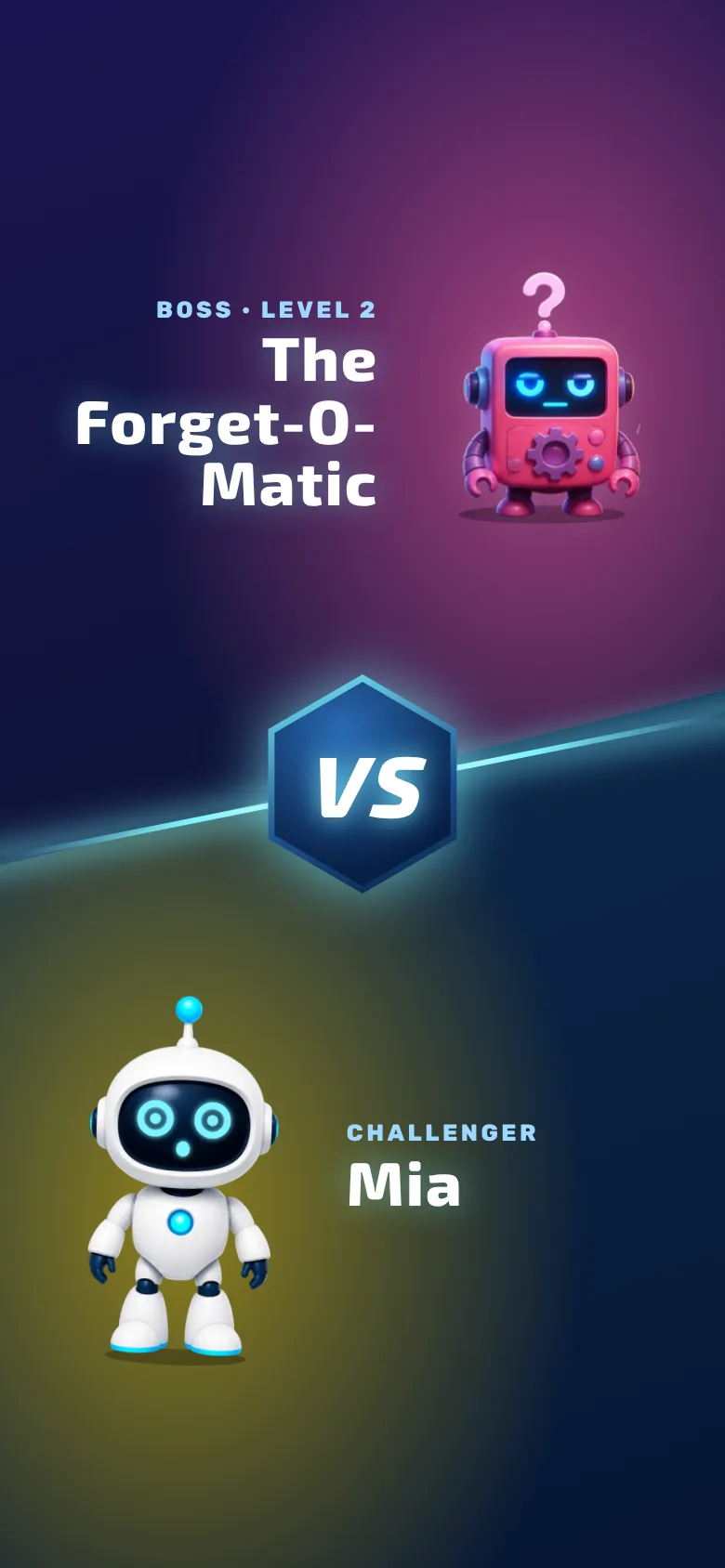
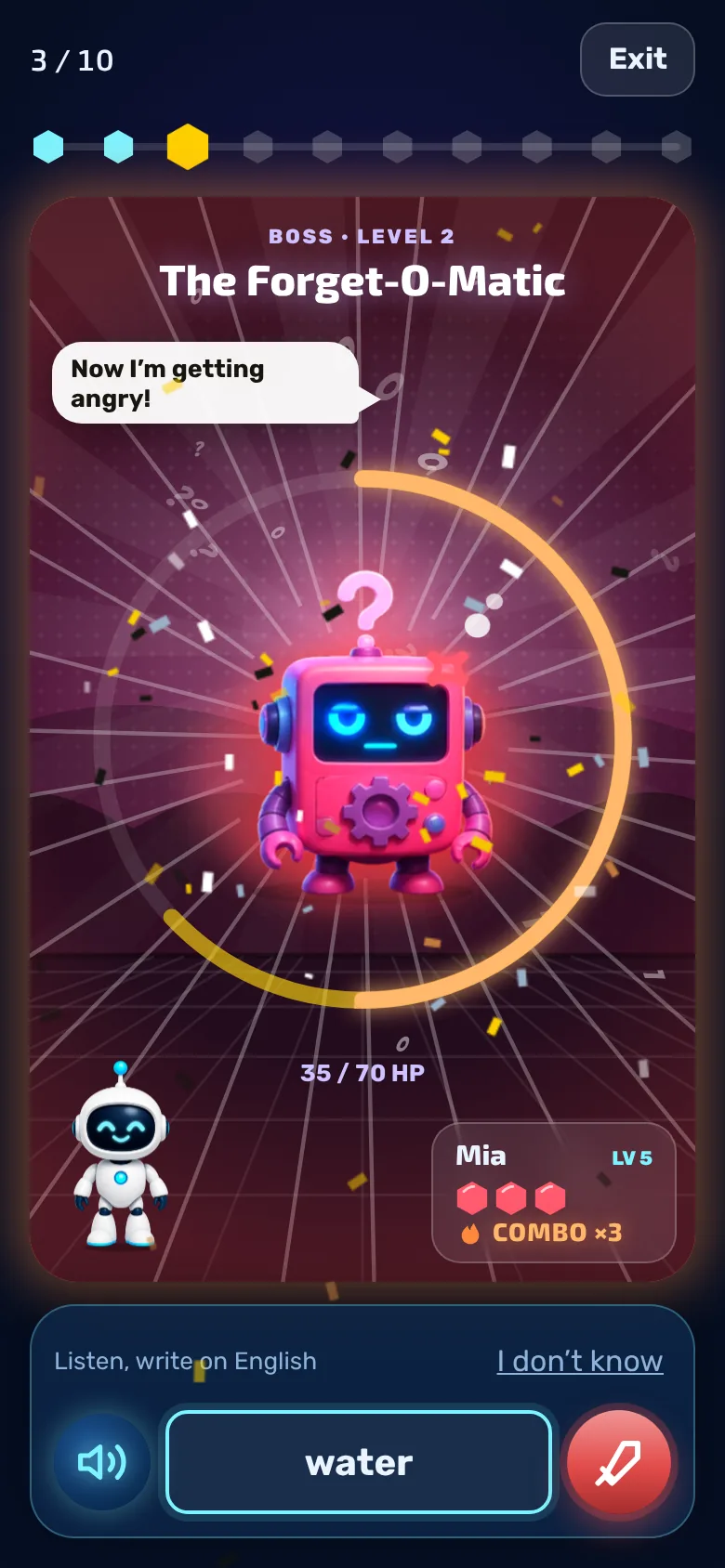
It’s like writing, but every correct word counts as a hit on the boss. Six different bosses take turns.
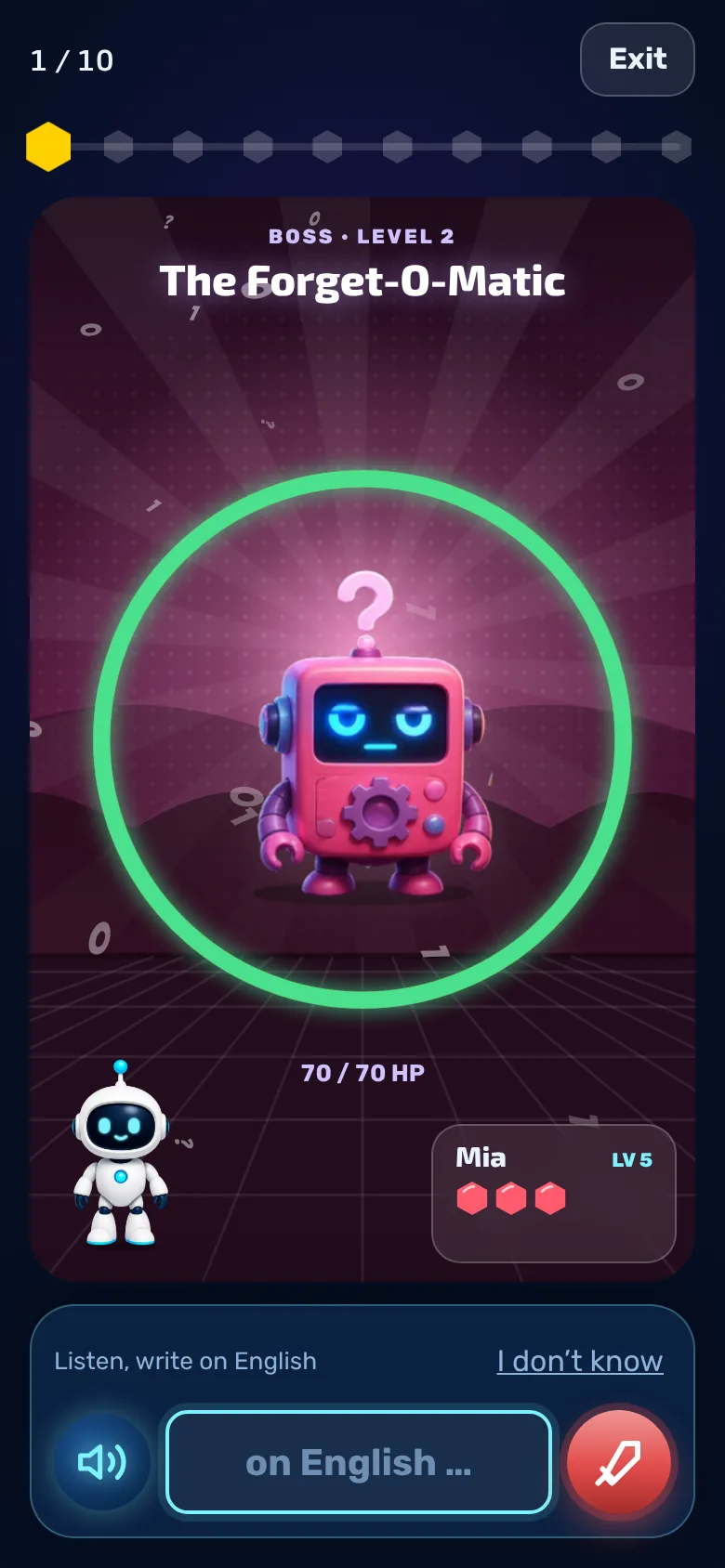
- Hit: The correctly spelled word flies at the boss, letter by letter. A hit deals 10 damage; from three correct words in a row (combo), it’s 15.
- Hearts: You have three. Every wrong answer costs you one, and the boss throws “???” back at you.
- Health points: These are shown by the ring around the boss. It changes from green to orange to red.
- Victory: When your health points reach 0, you win and receive 30 coins. If you run out of hearts, you lose, and if you run out of words, the boss escapes.
- Revanche: Nach dem Kampf startet „Nochmal kämpfen“ sofort den nächsten Boss-Kampf. Mit „Fehler nochmal üben“ übst du die falschen Wörter in Ruhe.
Tip: The bosses’ difficulty level increases with every victory.
Progress
XP, levels and rank
Everything you practise earns you experience points (XP). With enough XP, you level up.
- Here’s how you earn XP: 10 per training session, 3 for every word spelled correctly, 25 for a flawless round, plus bonuses from missions.
- Level: Level 2 gibt es bei 60 XP, jedes weitere Level braucht 30 XP mehr als das vorige. Jeder Aufstieg bringt 20 Münzen, und dein Wappen leuchtet mit dem neuen Level auf.
- Ranks: Rookie (from Level 1), Word Hunter (Level 3), Language Pro (Level 6), Vocabulary Master (Level 10) and Legend (Level 15).
- Series: The consecutive days on which you practised at least once.
Something new every day
Missions and learning path
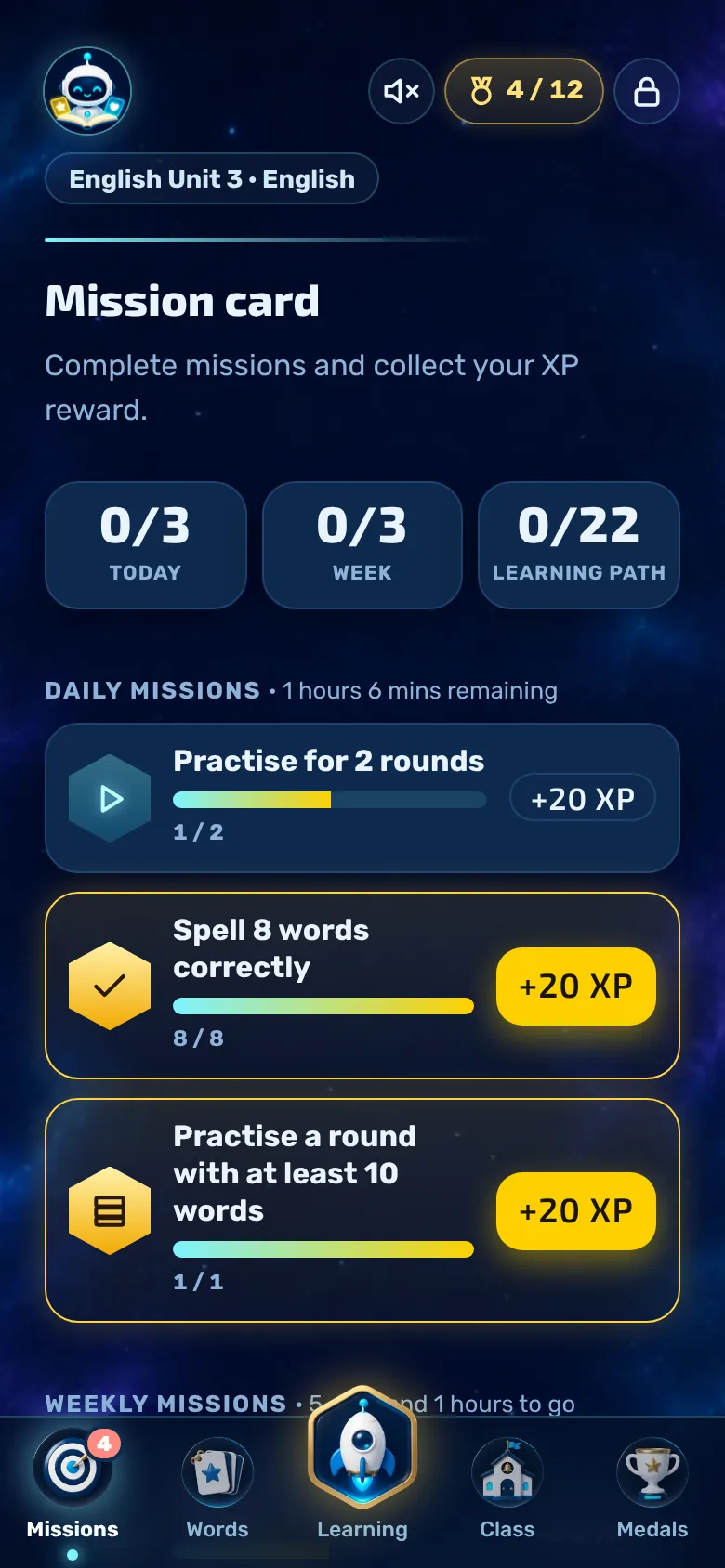
Missions give you small goals. For every mission you complete, you’ll earn XP and coins.
- Daily missions: three per day. They expire at midnight.
- Weekly missions: three per week; new ones are released at midnight on Mondays.
- Learning path: In World 1, there are 22 special missions, such as your first training session or the 7-day series. You can see the next three; the rest are ‘secret’.
- Die Karte: Jede Mission ist eine Station, zum Beispiel ein Blitz zum Trainieren, ein Geschenk, eine Schatztruhe oder ein Boss. Geschaffte Stationen bekommen drei Sterne, und dein Roboter steht an der nächsten Station.
- Additional worlds: Once you’ve completed all the missions in a world, the next one unlocks with a reward of 50 coins.
- You have to collect your rewards. The number on the ‘Missions’ tab shows you how many are available.
Collect
Medals
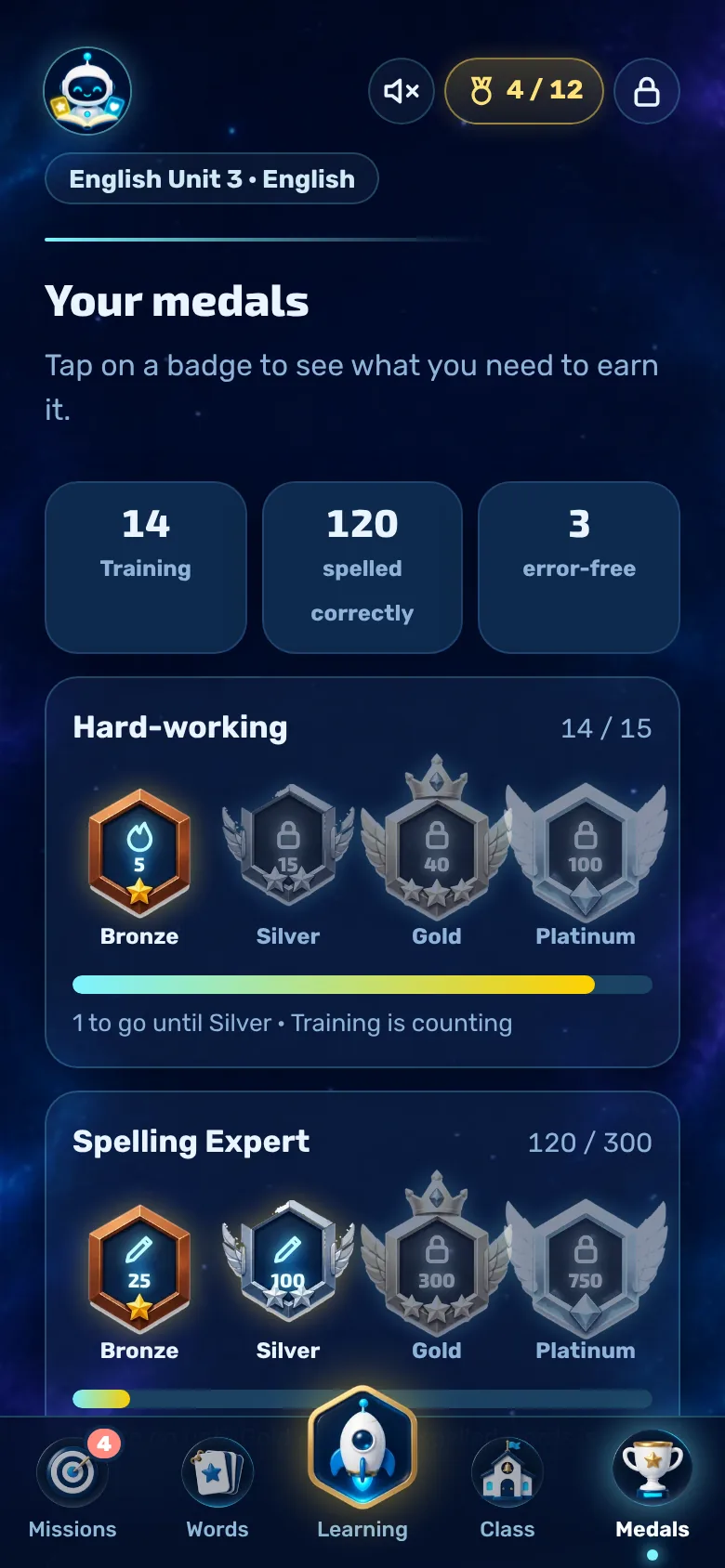
There are three medals, each with four levels: bronze, silver, gold and platinum – twelve in total.
- Hard-working: 5, 15, 40 and 100 training sessions.
- Spelling Pro: 25, 100, 300 and 750 correctly spelled words.
- Error-free: 1, 5, 15 and 40 writing rounds with 100 per cent (from 5 vocabulary words).
- Tap on a medal and it will flip over to show what’s still missing.
Reward
Coins and Bot Shop
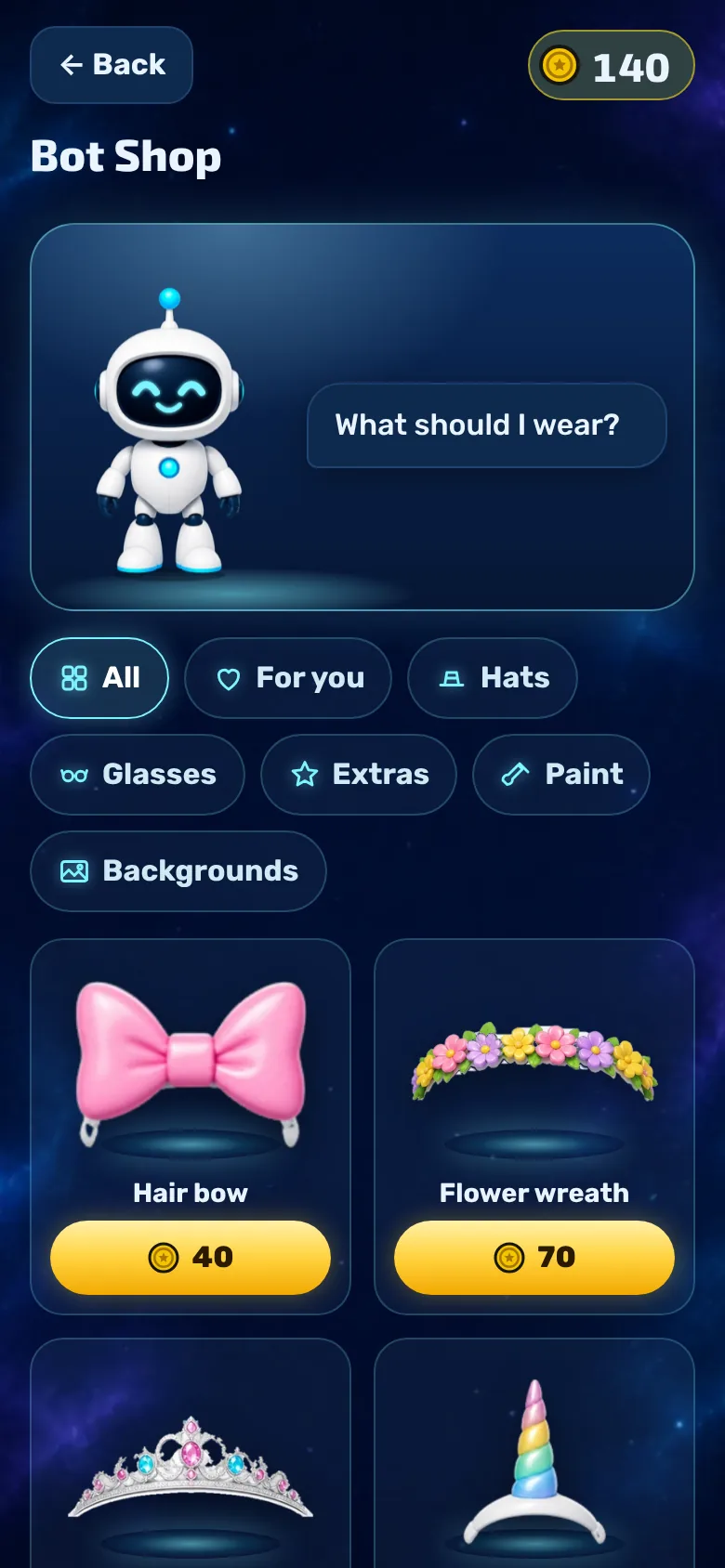
You use your coins to customise your robot. You never have to spend real money on this.
- Earning coins: 5 for each correct word when typing and during boss battles, 3 for listening, 30 for defeating a boss, 20 for reaching a new level, and XP divided by 4 for missions.
- Kategorien: Hüte, Brillen, Extras (Ohren, Hals, Rücken), Lack (die Farbe der Hülle) und Hintergründe. In der Weihnachtszeit gibt es zusätzlich den Reiter „Weihnachten“.
- Your robot contributes one part per seat. What you’ve bought is yours to keep forever.
- Your robot also appears in the class leaderboard wearing its outfit.
Jedes Jahr im Dezember
Adventskalender und Weihnachten
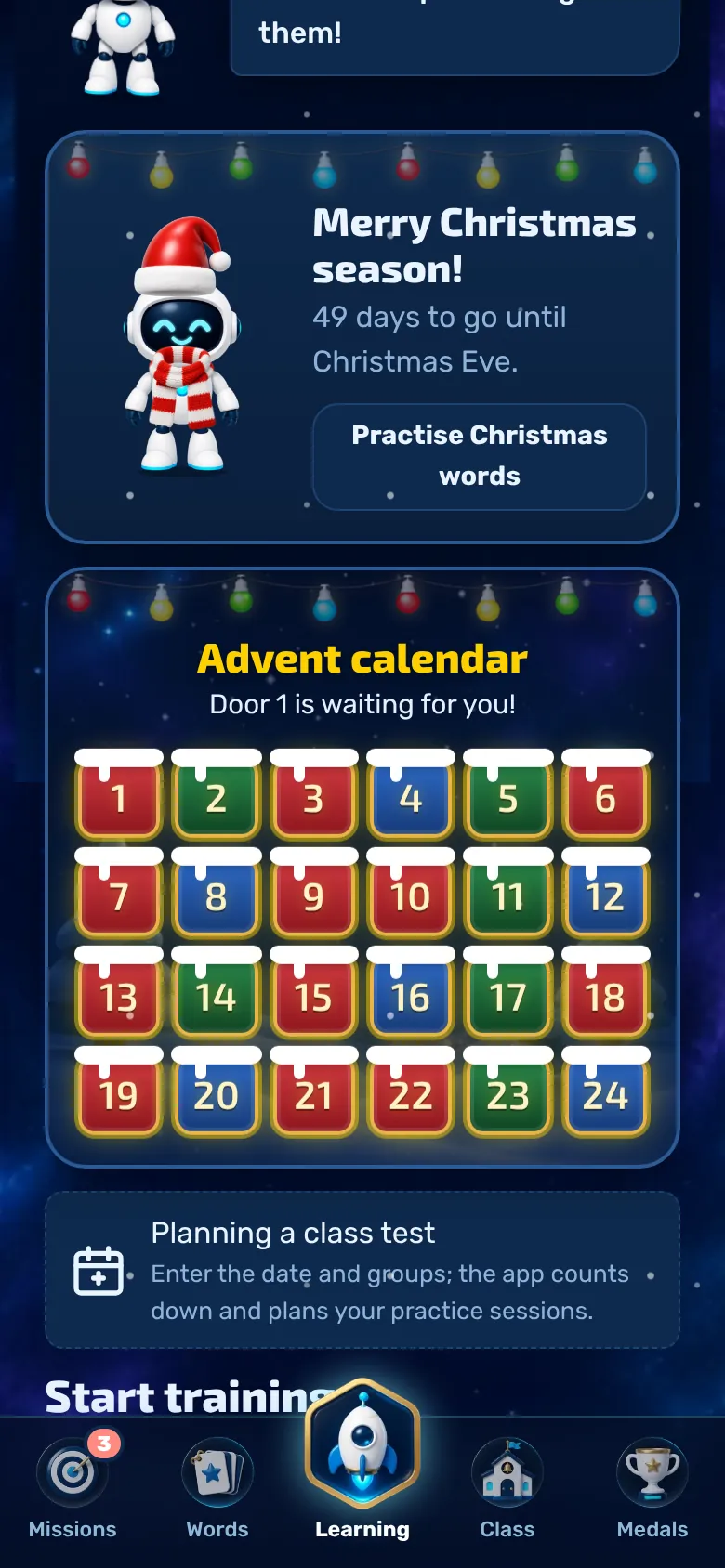
Ab dem 1. Dezember wartet auf der Startseite jeden Tag ein Türchen auf dich.
- Türchen öffnen: Das Türchen von heute geht auf, wenn du zwei Übungsrunden geschafft hast. Verpasste Türchen kannst du später noch öffnen.
- Drin stecken: zwei neue Weihnachts-Wörter für dein Set „Weihnachten“, Münzen und manchmal eine Wusstest-du-Notiz.
- Bosse und Geschenke: Hinter Türchen 6 wartet der Muffel-Bot, hinter Türchen 24 der Frost-Bot. Dazu gibt es Weihnachtsmütze, Rentier-Geweih, Zuckerstangen-Schal, den Hintergrund Schnee und die Stern-Antenne, die es nur hier gibt.
- Weihnachtszeit: Vom 6. Dezember bis 6. Januar schneit es in der App, die Missionskarte und die Boss-Arena sind verschneit, und im Shop gibt es den Reiter „Weihnachten“.
Well prepared
Plan a class test
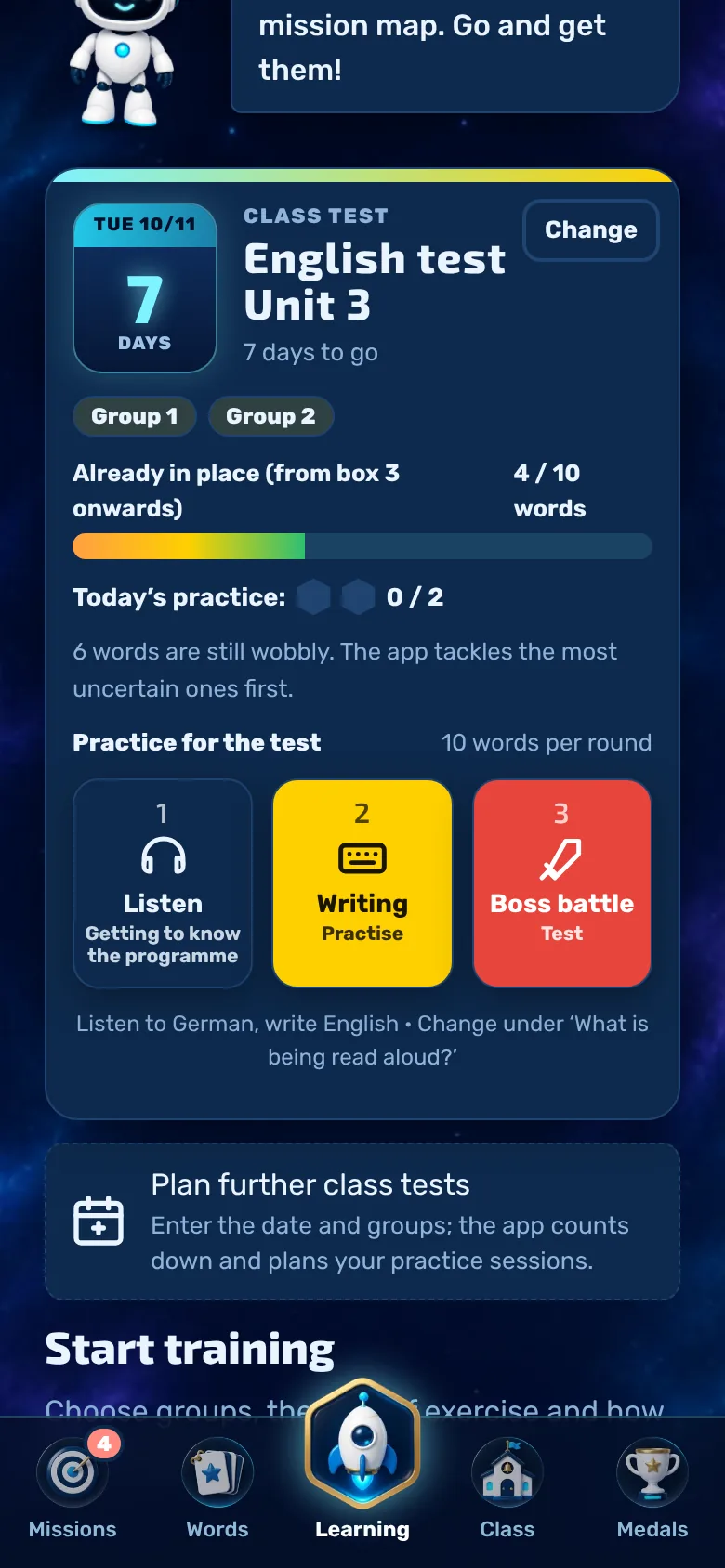
Enter the date of your assignment. The app counts down the days and tells you what to practise today.
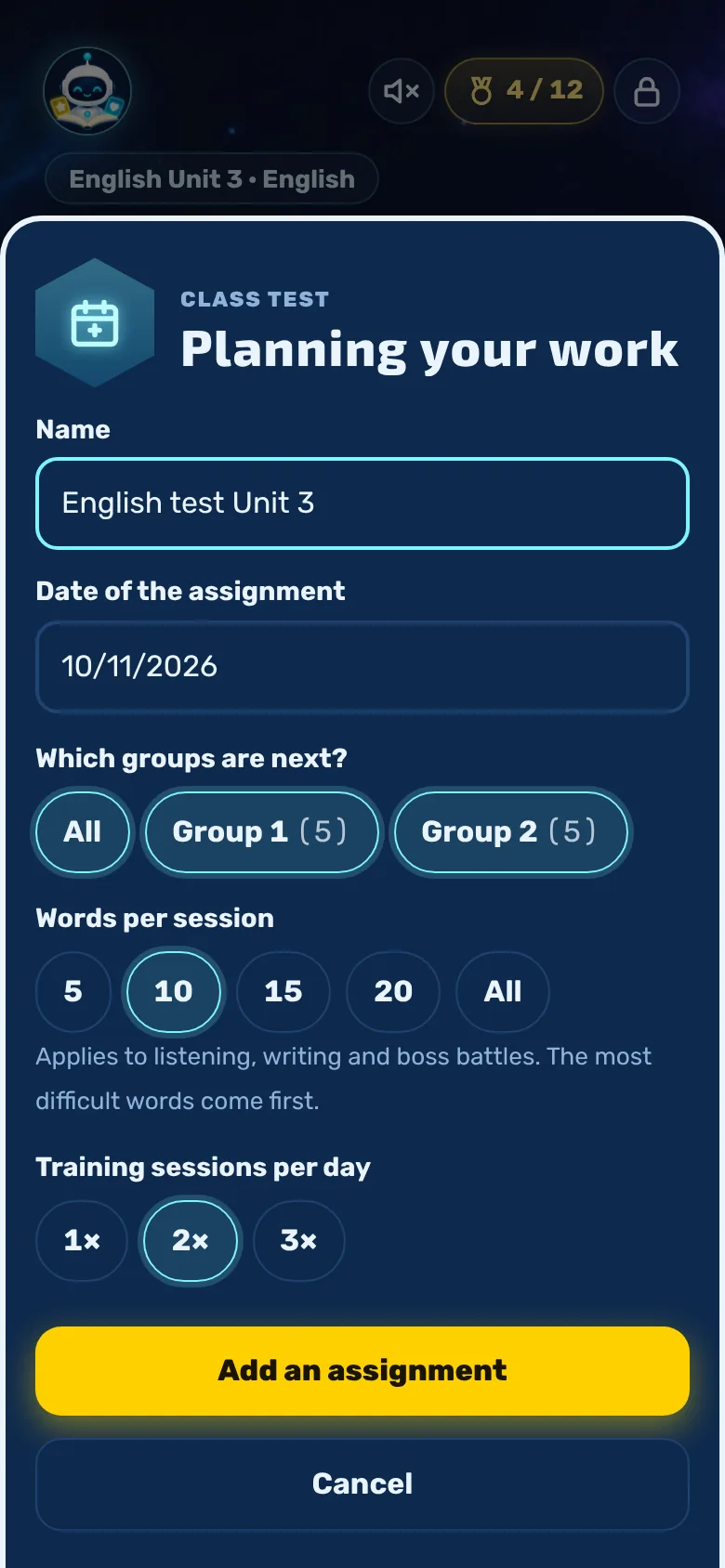
- Tap on ‘Plan class test’ in the ‘Learning’ tab and enter the name, date and the groups taking the test.
- Choose how many words per session and how many sessions per day (1 to 3) you want to do.
- Three buttons determine the order: 1 Listen (get to know), 2 Write (practise), 3 boss battle (test). The words you’re least confident with always come first.
- The ‘Already mastered’ bar shows how many words have already been learnt from Unit 3 onwards. If you’ve mastered them all before the test date, you’ll receive the ‘Perfectly prepared’ mission.
- After the test, the app asks, ‘How did it go?’. You can enter how you felt and your mark, but you don’t have to. The test will then appear under ‘Past Tests’.
Learning together
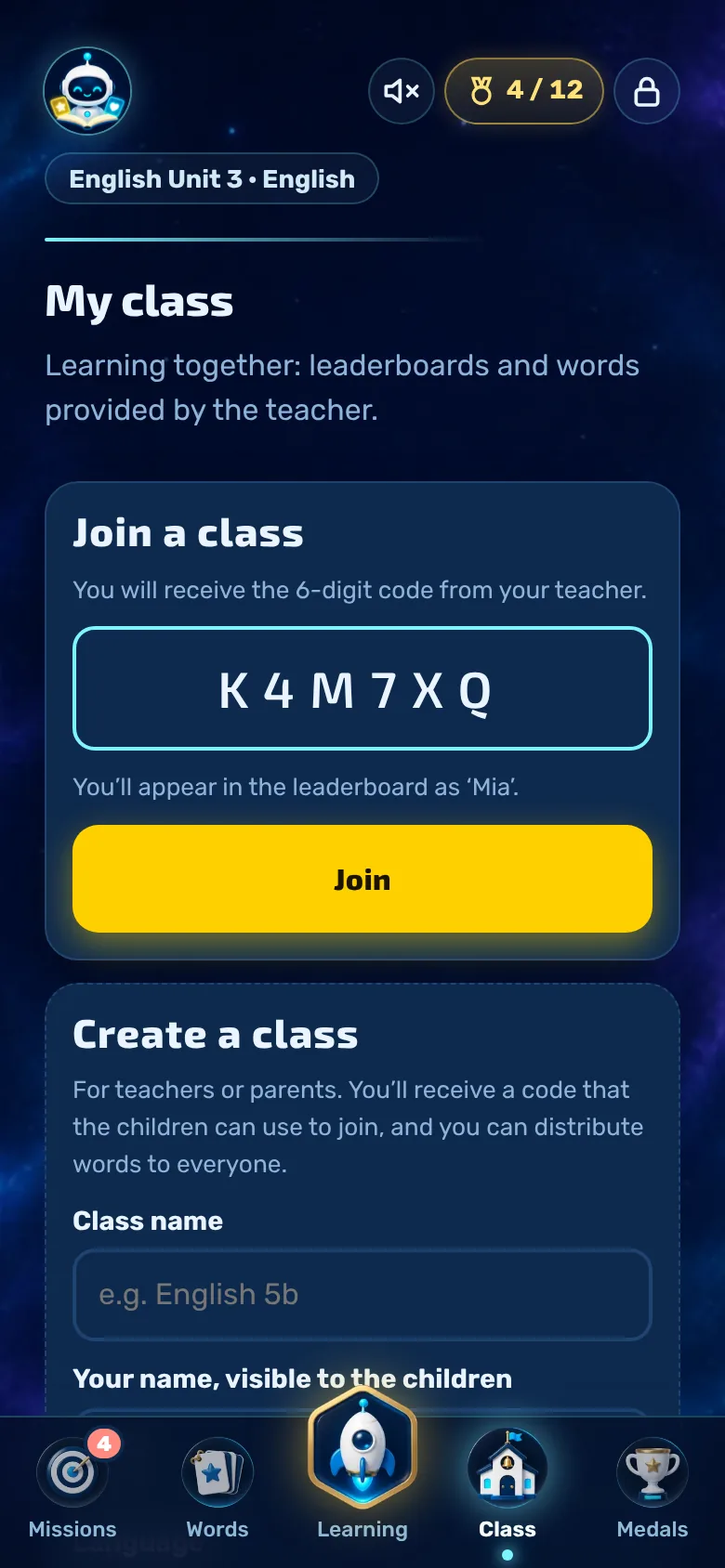
Join a class
Your teacher creates a class and gives you a six-digit code.
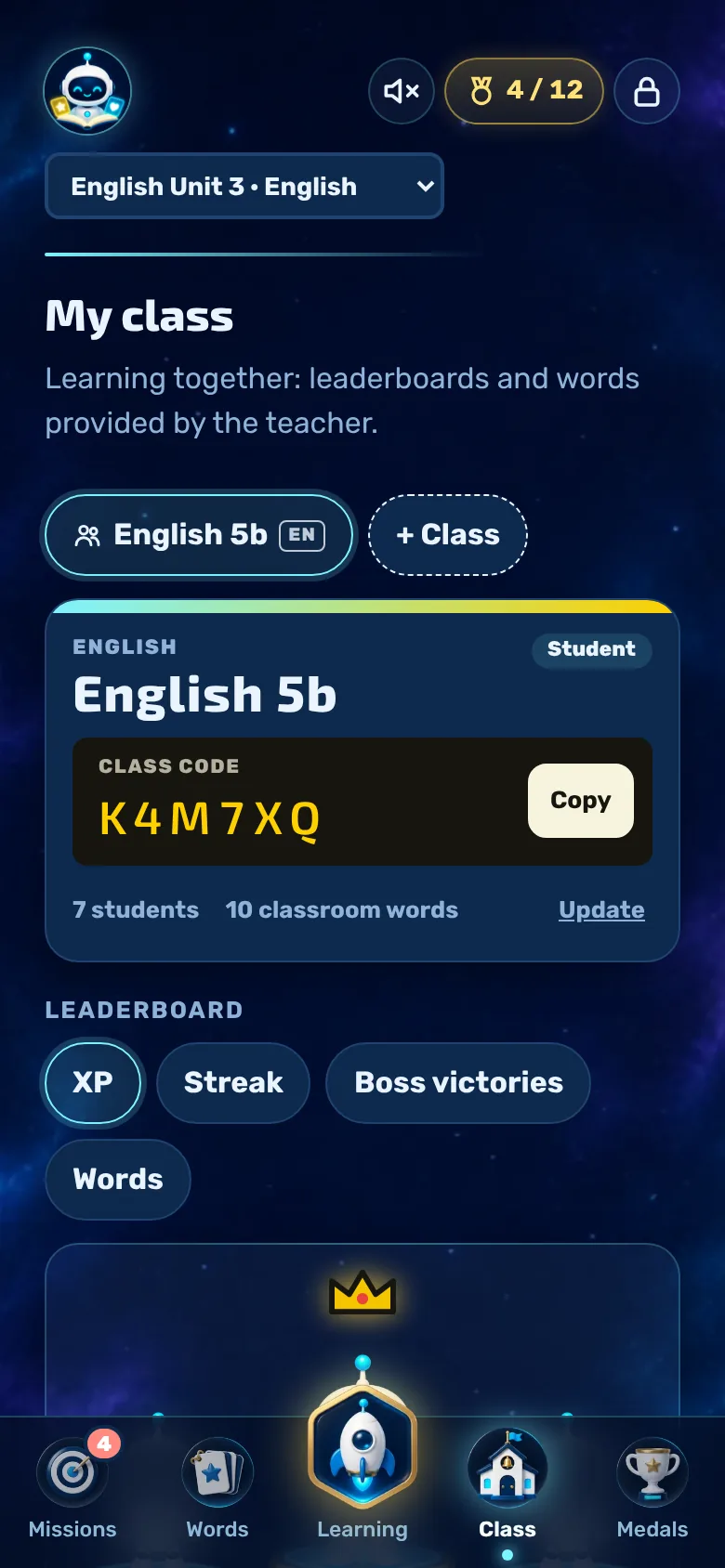
- Open the ‘Class’ tab, enter the code and tap ‘Join’. You’ll appear in the leaderboard using your name from the app.
- The vocabulary provided by the teacher is automatically sent to your mobile as a ‘class set’ and updates itself. Your progress in the flashcard deck is saved.
- You can sort the leaderboard by XP, streak, boss victories or correct words. The top three are on the podium, with the robot wearing its current outfit.
- You can be in several classes. Selecting ‘Leave class’ simply takes you out of the selected class; the vocabulary remains on your mobile.
If something goes wrong
Get help
Is something not working, or do you have an idea? Talk to your parents. They can open the support section in the parents’ area; the answer will then appear in the app.
- The robot lets you know when an answer is available.
- Information on how the support service works can be found in the guide for parents.
Immer dabei
Die App aufs Handy holen
Mit einem eigenen Symbol auf dem Handy, Tablet oder Computer bist du mit einem Tipp beim Üben, ganz ohne Adressleiste.
- Frag deine Eltern, ob ihr die App zusammen auf den Startbildschirm legt.
- Wie das auf dem iPhone, auf Android, unter Windows und auf dem Mac geht, steht Schritt für Schritt in der Anleitung für Eltern.
- Dein Konto, deine Vokabeln und deine Münzen bleiben dieselben.
Any more questions?
Can’t find what you’re looking for? Drop us a line and we’ll update the guide.
Continue to the Academy