Academy For teachers
For teachers
Create a class, provide vocabulary for everyone and keep track of everything: free of charge, with no adverts and without the children’s email addresses.
Overview
Before you start
Creating a class in Vokabel-Champion is free and does not require the children’s email addresses.
- You need a standard account in the app (username and password). There is no separate teacher account.
- If a PIN has been set in the parents’ area of your account, you must open it first; otherwise, you will not be able to create a class.
- Each account allows for up to 20 custom classes, each with up to 200 members.
- Children log in using a six-digit code and practise the same words.
Als App: Auf Tablets, Smartboards oder Schulrechnern lässt sich Vokabel-Champion aus dem Browser als App installieren. Die Schritte für iPad, Android, Windows und Mac stehen in der Anleitung für Eltern.
Questions: Would you like to try out the app first, or do you have any questions about how to use it? Please get in touch via the contact form.
Step 1
Create a class
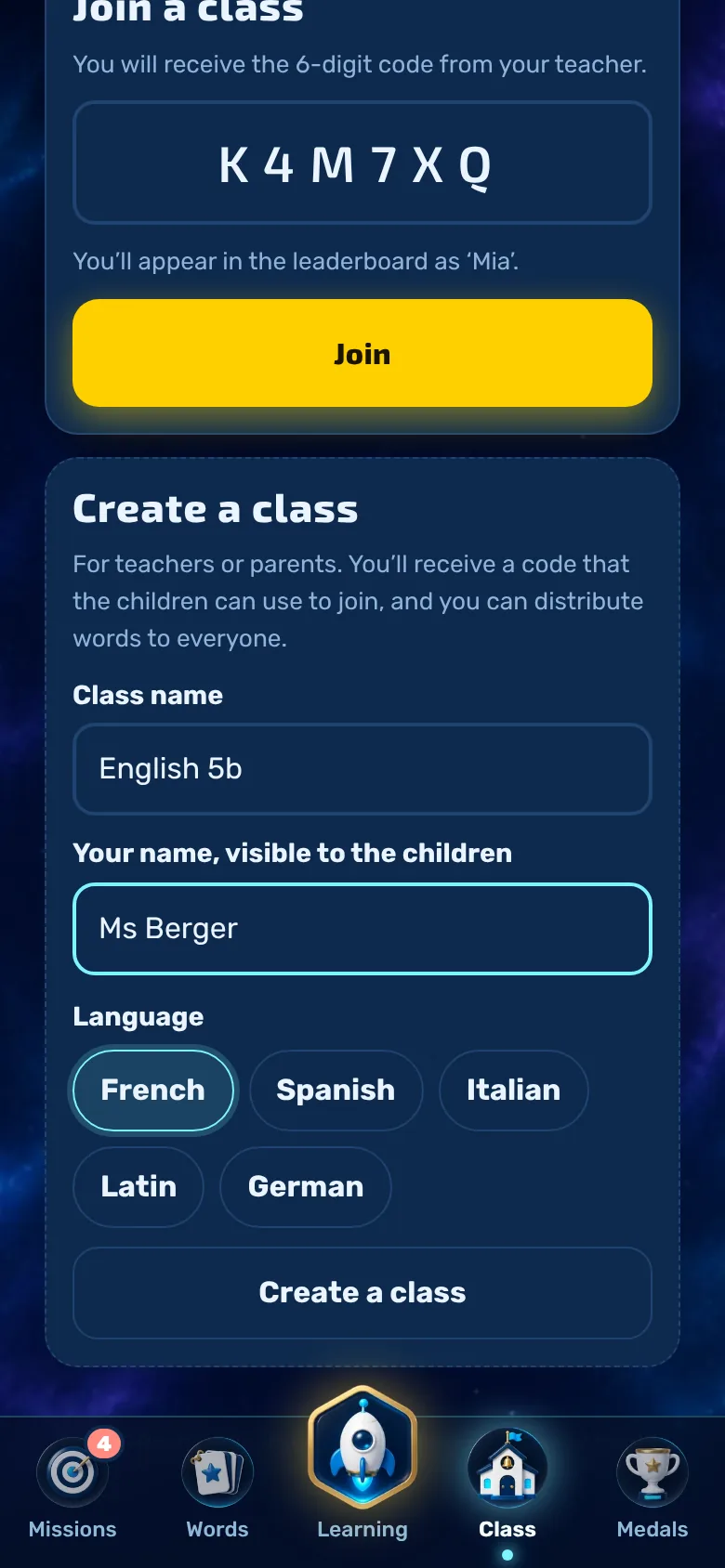
In the ‘Class’ tab, you can set up the class by entering a few details.
- Open the ‘Class’ tab and scroll down to ‘Create class’ (for existing classes, tap ‘+ Class’).
- Enter the name of the class, for example ‘English 5b’.
- Enter your name. The children will see it.
- Select the language and tap ‘Create class’.
Deutsch als Zweitsprache: Läuft die App auf Englisch, Französisch, Spanisch, Italienisch oder Portugiesisch, steht auch Deutsch zur Wahl. Dann lernen die Kinder Deutsch, und die Sprache der App ist die Ausgangssprache. So eignet sich die App auch für Kinder mit anderer Muttersprache.
Step 2
Share the class code
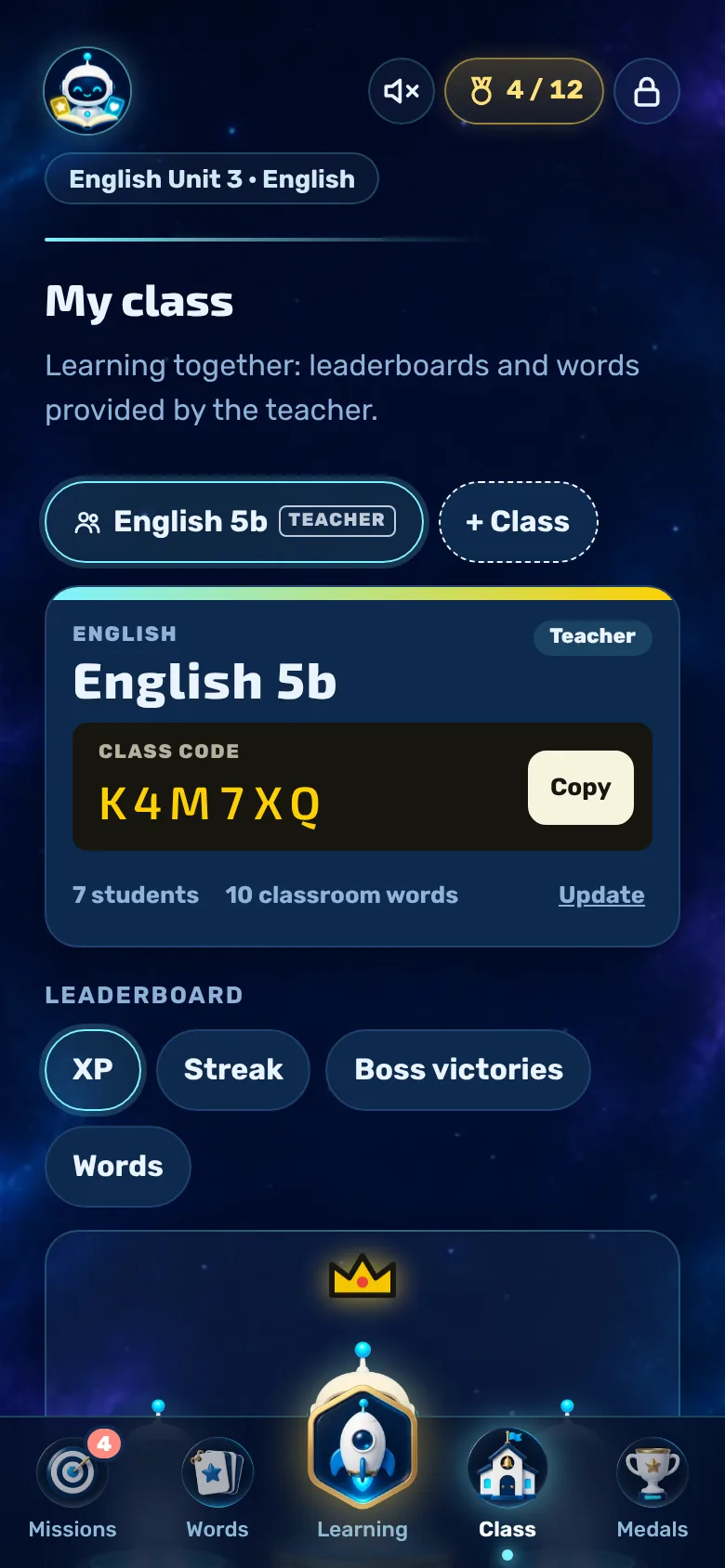
Once created, you will see the class displayed as a ticket with the six-digit class code.
- ‘Copy’ places a ready-made invitation text, including the class name and code, into the clipboard.
- The children open the ‘Class’ tab, enter the code and tap ‘Join’.
- The ‘Ticket’ shows how many pupils have joined and how many class vocabulary lists are available. ‘Refresh’ loads the latest data.
Step 3
Add vocabulary
Before you assign vocabulary, create a separate set for it, either manually or by importing.
- You can enter individual words in the ‘Vocabulary’ tab.
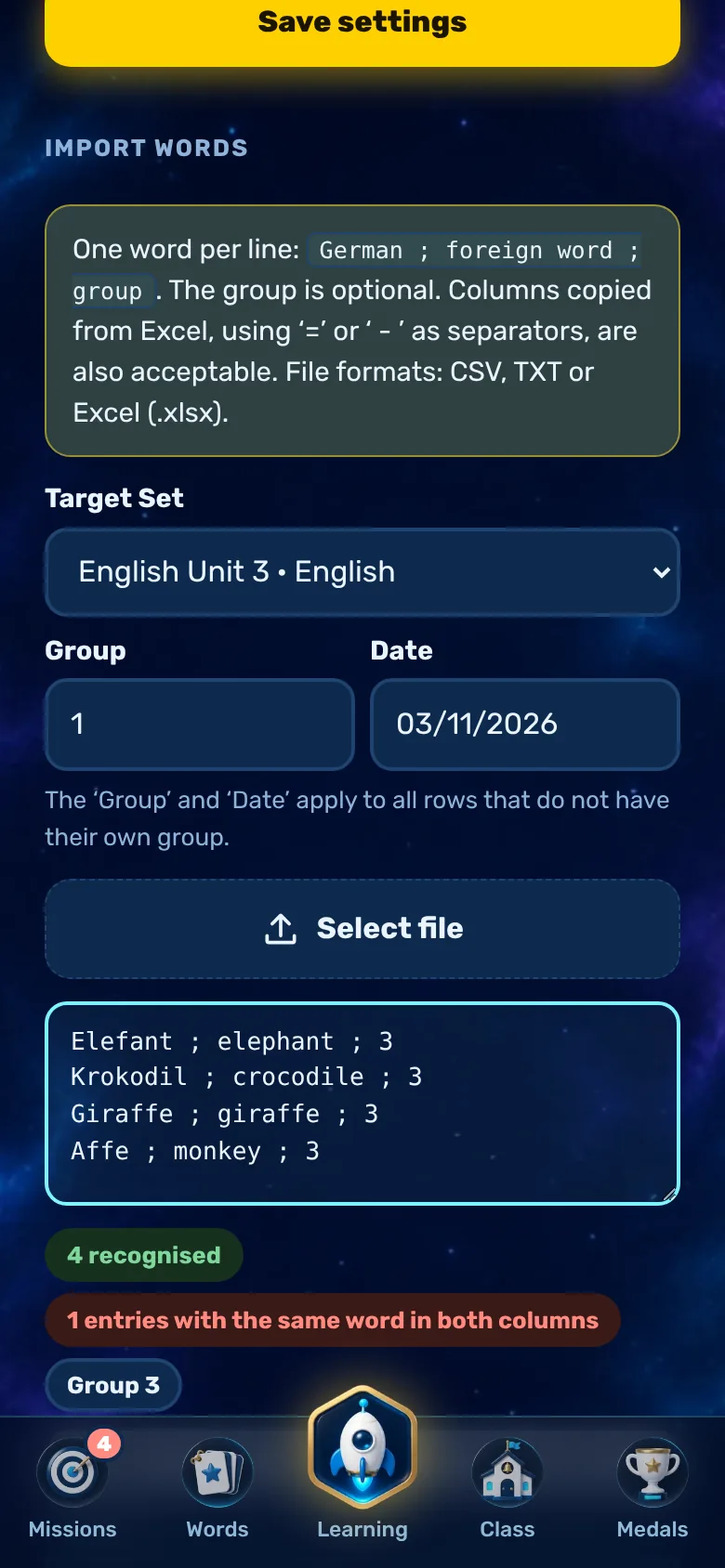
- You can import entire lessons into the parents’ area: one vocabulary word per line,
German ; foreign word ; group, also as a CSV, TXT or Excel file. - The preview shows what has been recognised before importing. Headers and duplicates are skipped.
Tip: Use the lesson or unit number as the group number. The children will select their groups later when practising and during the class test.
Step 4
Publish vocabulary for the class
With a single tap, all the words in a set are sent to the children’s mobile phones.
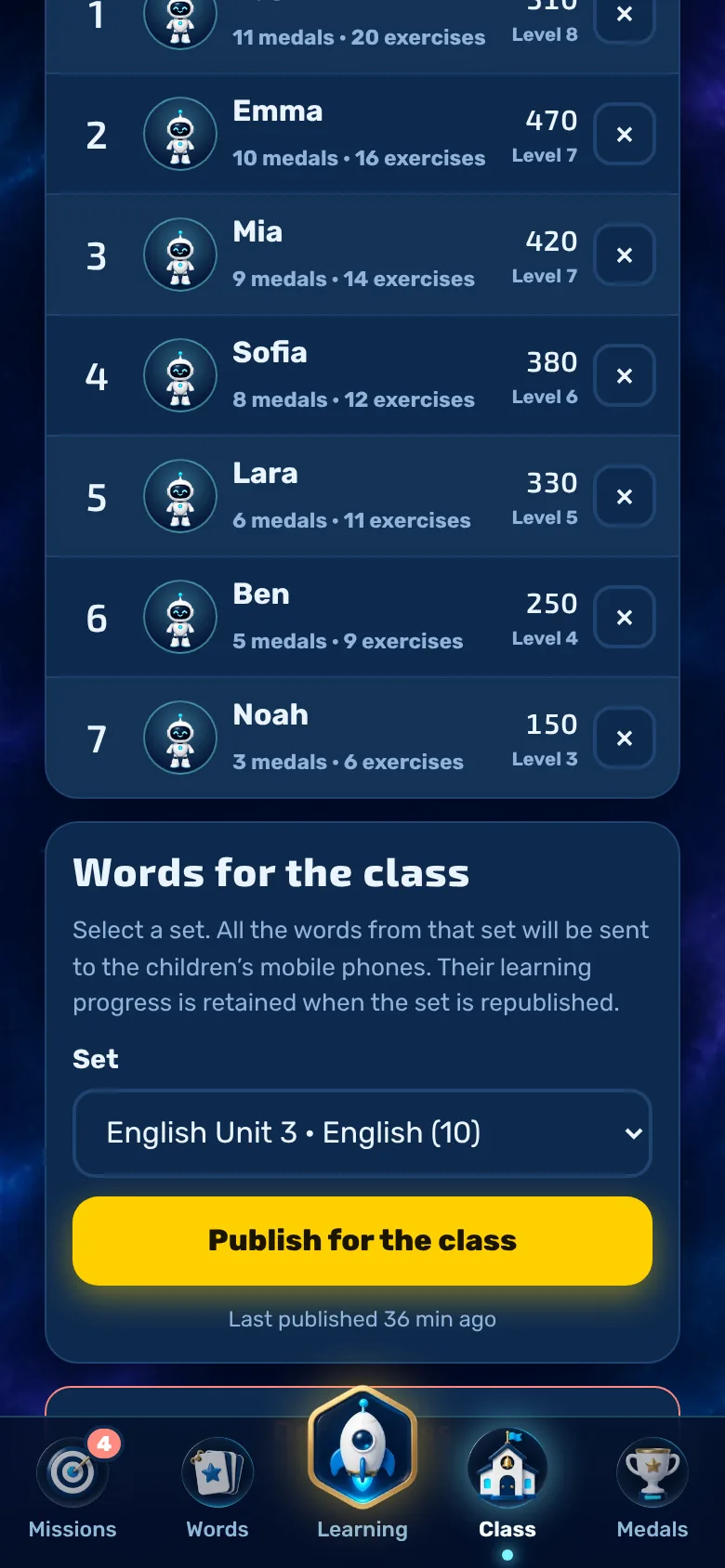
- Select the set under ‘Vocabulary for the class’.
- Tap on ‘Publish for the class’.
- The children are given a class set. It is read-only and updates itself automatically.
- Publish again later if you have added or deleted words. The children’s learning progress will be retained. Below this, you can see when it was last published.
At a glance
Leaderboard and overview
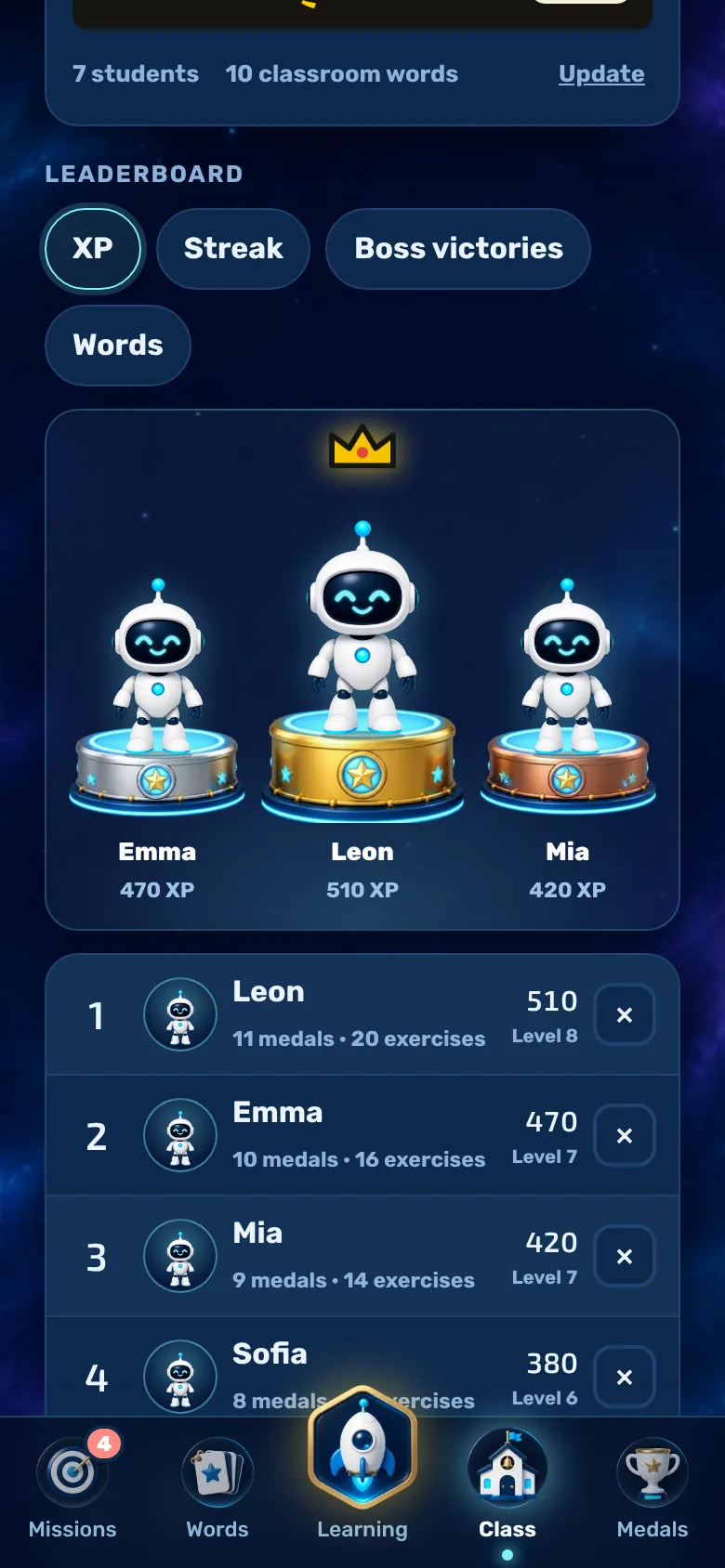
As a teacher, you can see all the children in the class and their progress.
- Sort by XP, series, boss victories or correct words.
- For each child, you can view their level, medals and training sessions. The top three are on the podium.
- Tap the ✕ to remove a child from the class. The app will ask “Are you sure?” for security reasons.
- If you do not want the leaderboard, you can disable it in the ‘parents’ area of your account under ‘Features’.
Tip
Supporting class tests
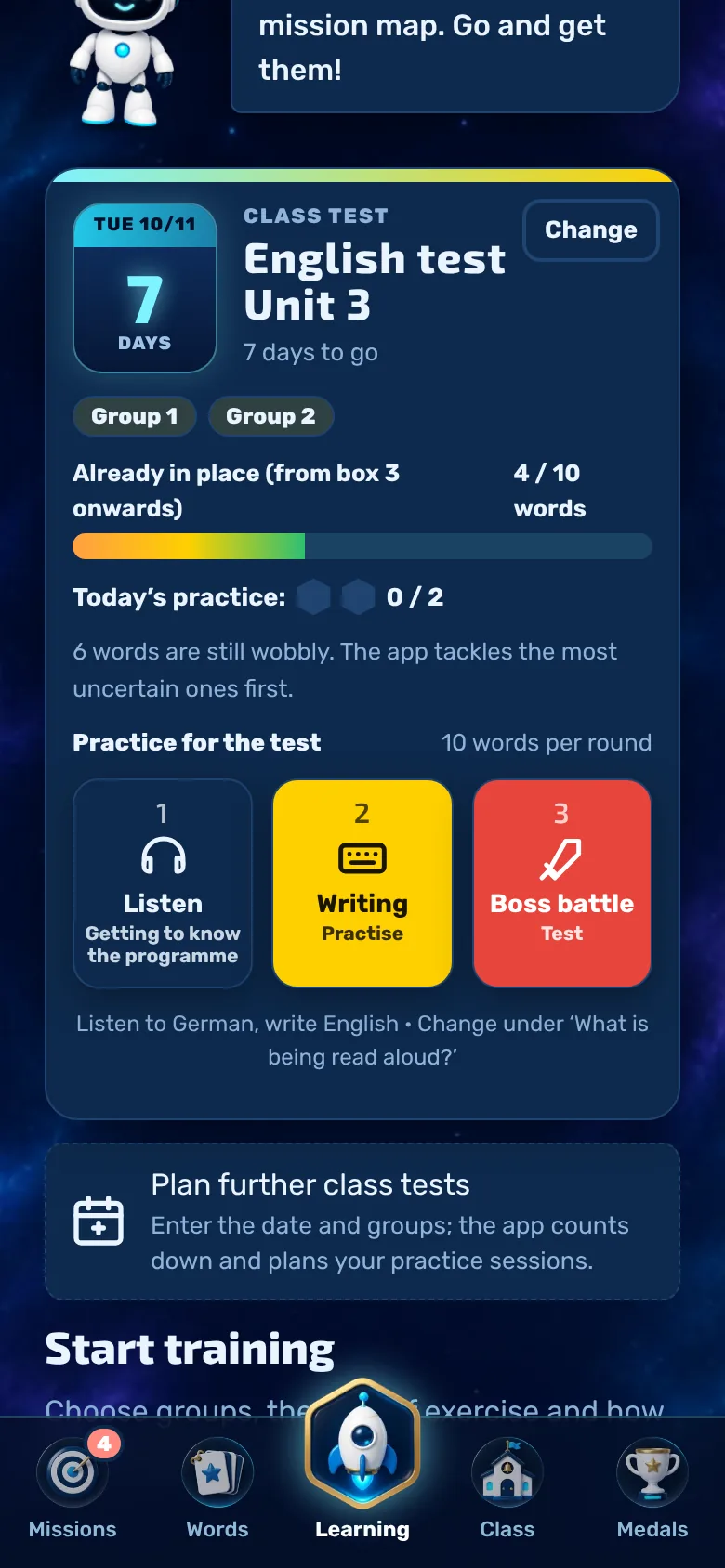
The children plan their class test themselves: they enter the date and groups, and the app counts down and plans the daily practice sessions.
- The groups from your class set are available to choose from. A meaningful group number for each lesson helps the children.
- The app tackles the words you’re unsure of first. The ‘Already mastered’ bar shows how many words you’ve already learnt.
- After the session, the children can enter how they felt and their mark. This remains on their device and in their own account, not in the class records.
Less of a game
Disable game elements
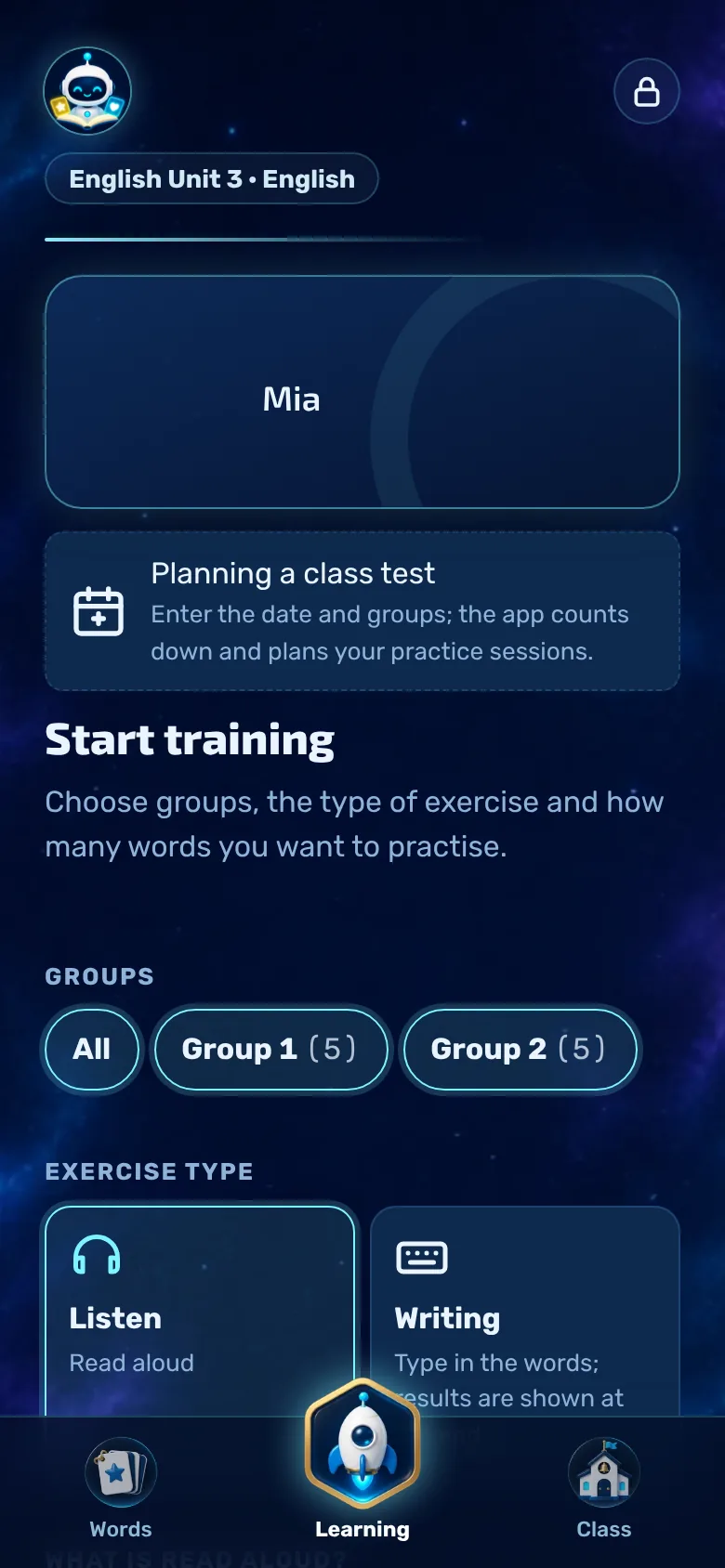
Not every child or teacher likes points and bosses. The learning mode hides all game elements.
- The toggle is located in the parents’ area under ‘Functions’ for each account, not for each class. Each child (or their parents) sets it themselves.
- In learning mode, the ‘Practise’, ‘Read Aloud’, ‘Class Vocabulary’ and ‘Class Tests’ features remain available.
- Individual features, such as the leaderboard, can also be disabled selectively.
Tip: Find out more in the guide for parents.
In the classroom
Data protection in the classroom
Vokabel-Champion has been deliberately designed to minimise data usage.
- Children do not need an email address, just a username and their parents’ consent.
- The name displayed in the leaderboard is taken from the app. Please suggest first names or nicknames, not surnames.
- The data is stored in a data centre within the EU (Ireland). There are no adverts, no trackers and no in-app purchases.
- Accounts can be deleted at any time, along with all associated data. Full details can be found in the privacy policy.
Please note: Please check with the school management or the data protection officer to confirm whether the app is authorised for use at your school.
Tidying up
Delete or leave a class
At the end of the school year, you tidy up the classroom.
- At the bottom of the ‘Class’ tab, teachers will find ‘Delete class’. This deletes the class for everyone.
- Children can leave a class themselves. The vocabulary words then remain on their mobile phone.
Any more questions?
Would you like to try out the app in your class or do you have any questions? Please get in touch.
Continue to the Academy